Search and Filter Actions
As your team creates more actions, finding specific ones becomes important. Zeltask provides search and filter tools to help you locate actions quickly.
Using the Search Bar
The search bar is located at the top of the Actions module.
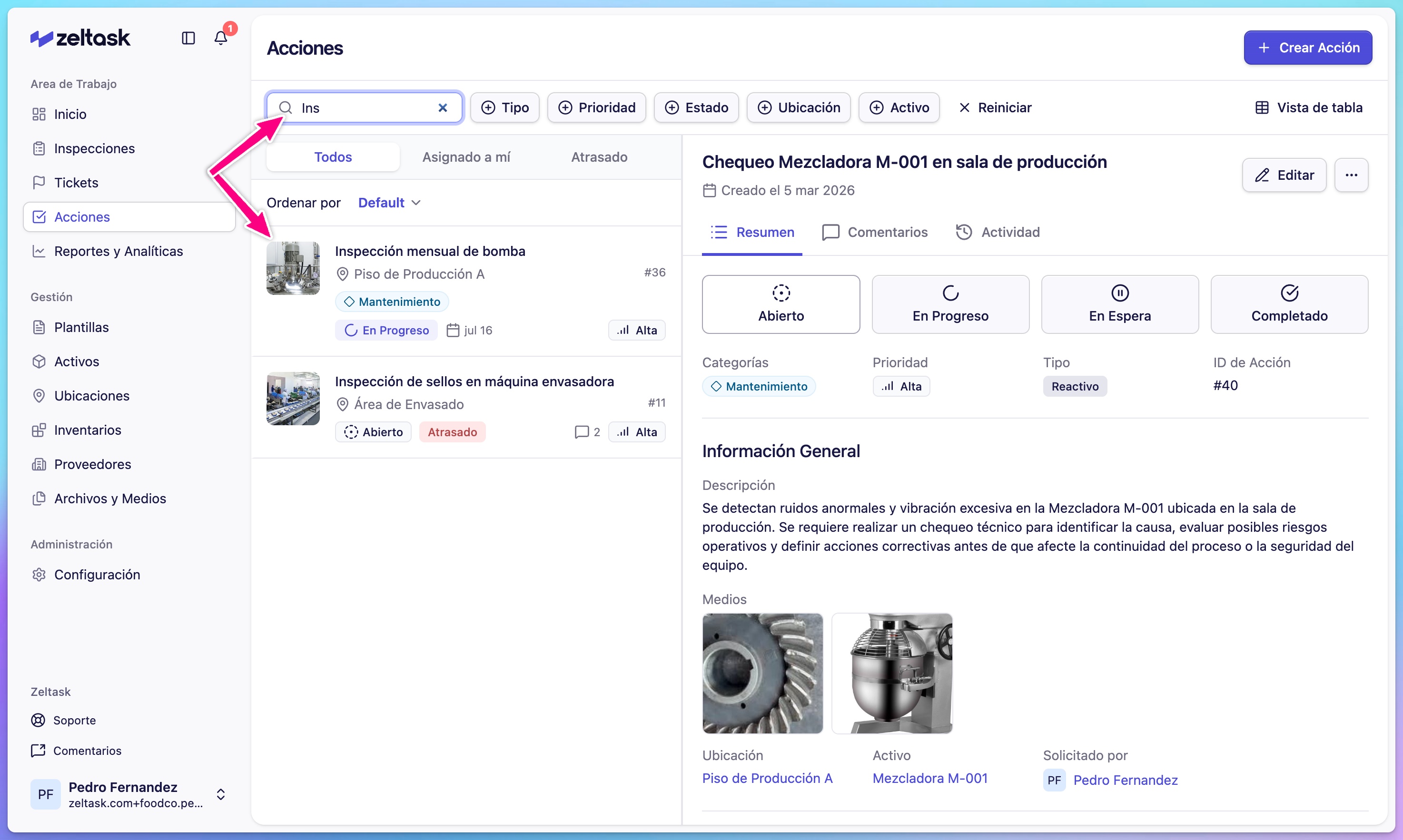
What You Can Search
- Action title
- Description text
- Action ID
How to Search
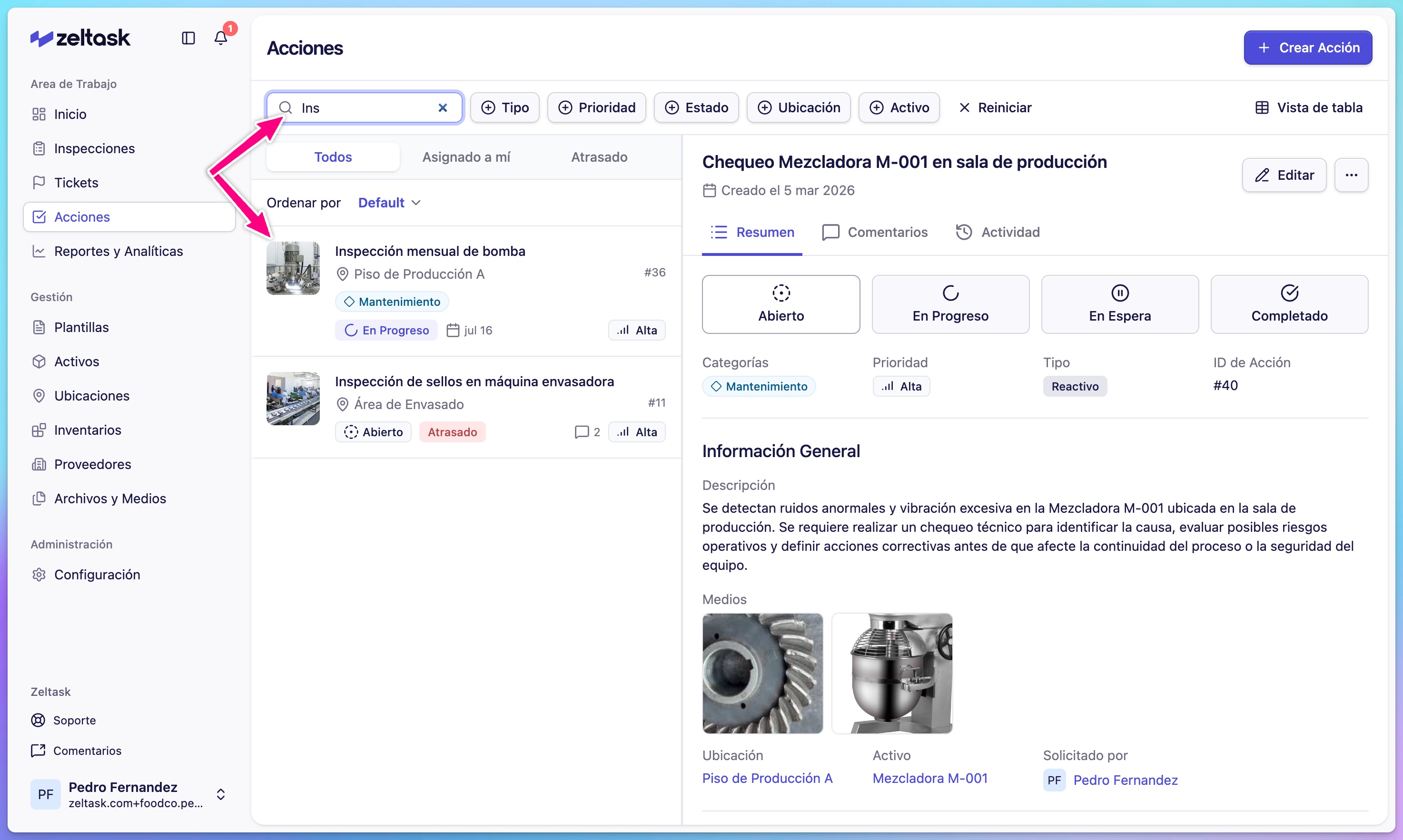
- Click the search bar
- Type your search term
- Results filter automatically as you type
Using Filter Chips
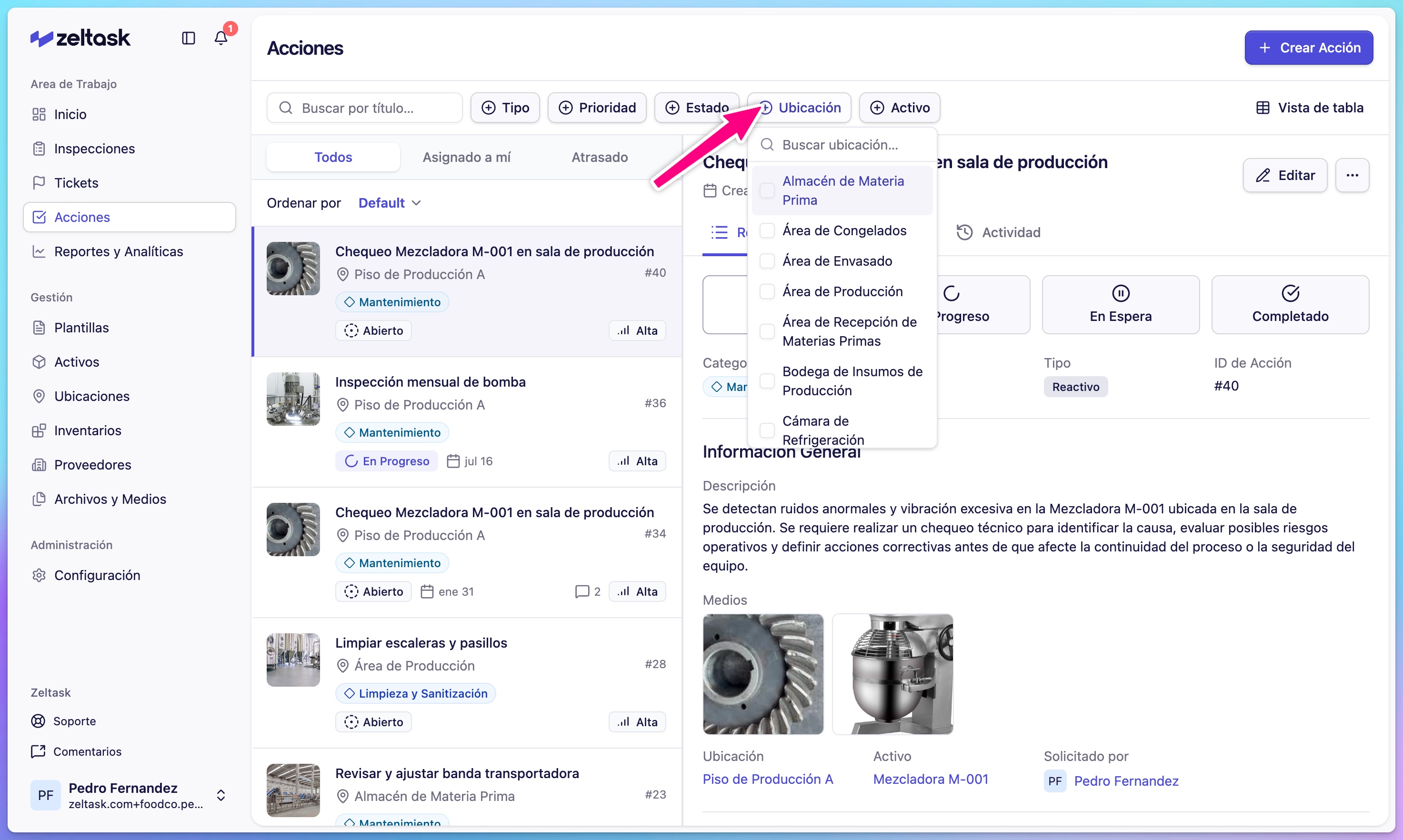
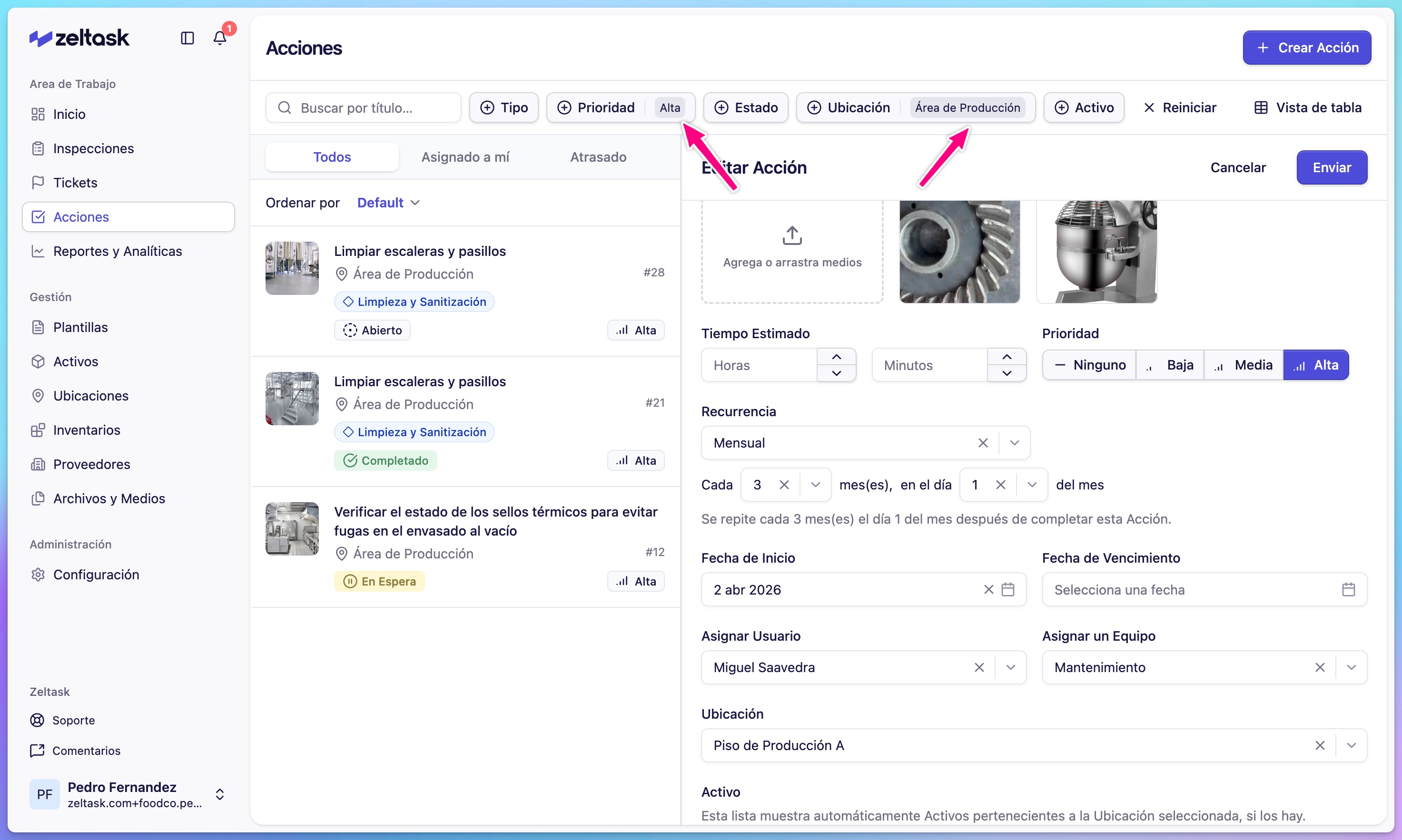
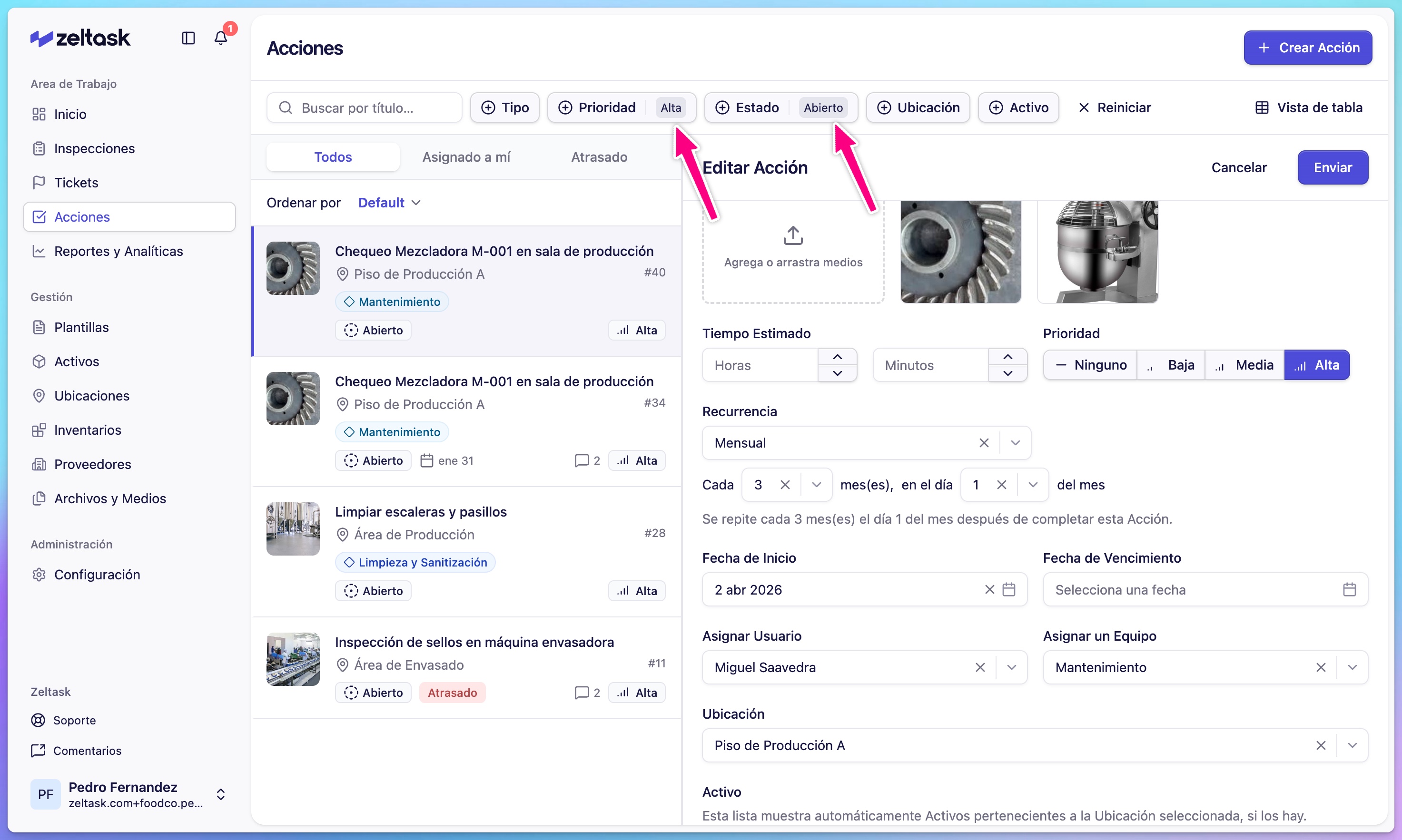
Filter chips appear below the search bar and let you narrow results by specific attributes.
Available Filters
| Filter | Options |
|---|---|
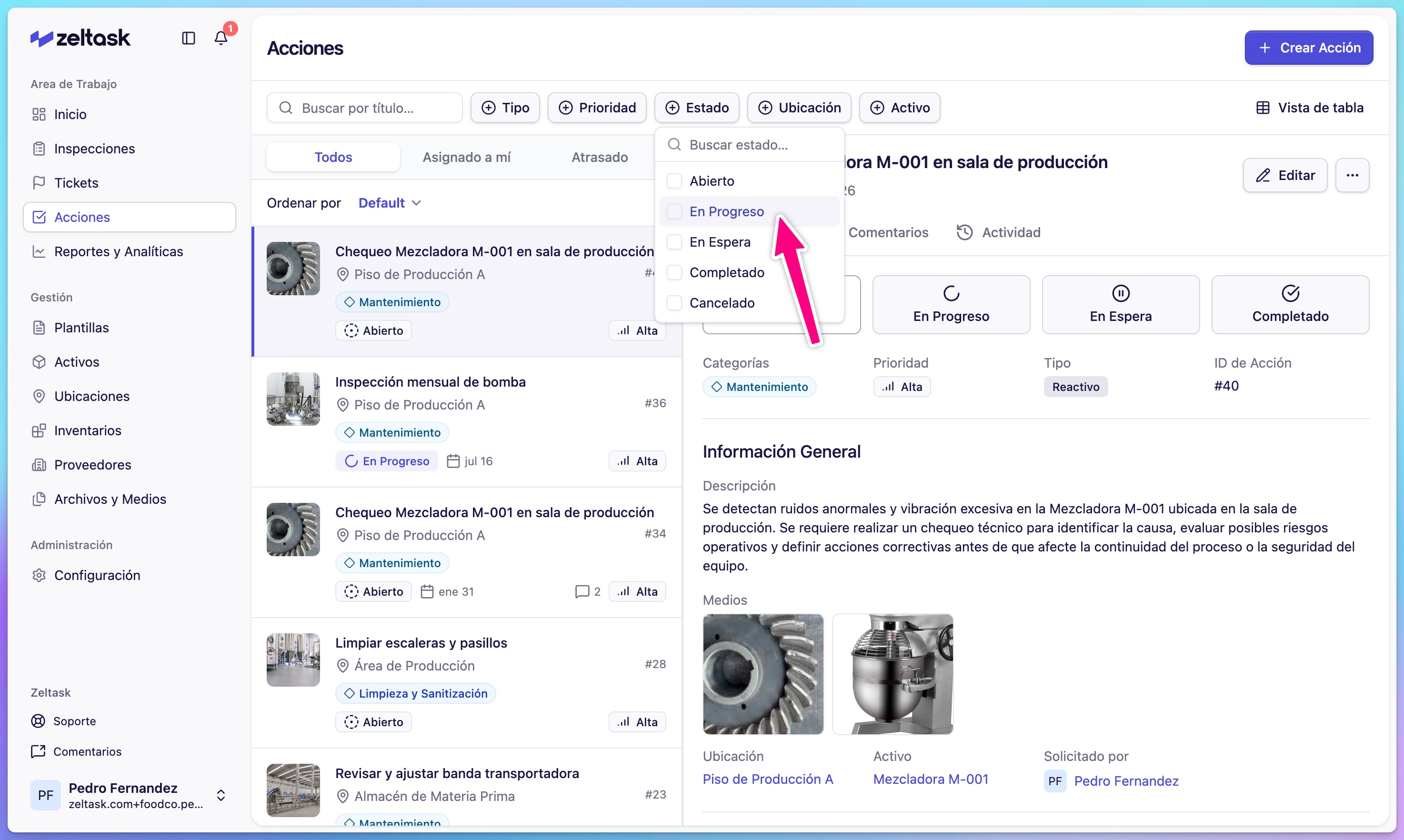
| Status | Open, In Progress, On Hold, Done |
| Priority | None, Low, Medium, High |
| Type | Preventive, Reactive |
| Category | Maintenance, Plumbing, Electrical |
| Location | Your defined locations |
| Assigned To | Users or teams |
Applying Filters
- Click on a filter chip
- Select one or more options
- Results update immediately
Combining Filters
You can apply multiple filters at once. For example:
- Status: In Progress + Priority: High → Shows urgent active work
- Type: Preventive + Location: Production Floor → Shows scheduled maintenance for a specific area
Clearing Filters
- Click the X on individual filter chips to remove them
- Click Clear all to reset all filters
Common Search Scenarios
Find overdue actions
- Filter by Status: Open or In Progress
- Sort by due date (if available)
- Look for actions past their due date
Find all actions for an asset
- Use the search bar to type the asset name
- Or navigate from the Asset detail view to see linked actions
Find your assigned actions
- Filter by Assigned To
- Select your name
Find high-priority open work
- Filter by Status: Open
- Filter by Priority: High
Find completed work this week
- Filter by Status: Done
- Review the completion dates in the list
Sorting Results
Actions can be sorted by:
- Date created (newest or oldest first)
- Due date
- Priority
- Status
Click column headers (in Table View) to change sort order.
Saving Filter Combinations
Currently, filters reset when you leave the module. For frequently used combinations:
- Apply your filters
- Complete your review
- Re-apply filters as needed on your next visit
Tips
- Use specific search terms for faster results
- Combine filters to narrow large lists quickly
- Check multiple statuses to see all active work (Open + In Progress)
- Use location filters to focus on specific areas of your facility
- Clear filters before starting a new search to avoid confusion