Add Costs and Labor Hours
Record costs associated with an action to maintain budget control and generate operational expense reports.
Before You Start
- The action must already exist
- You need access to the action's detail view
Access the Costs Section
- Open the Actions module from the navigation bar
- Click on the action where you want to record costs
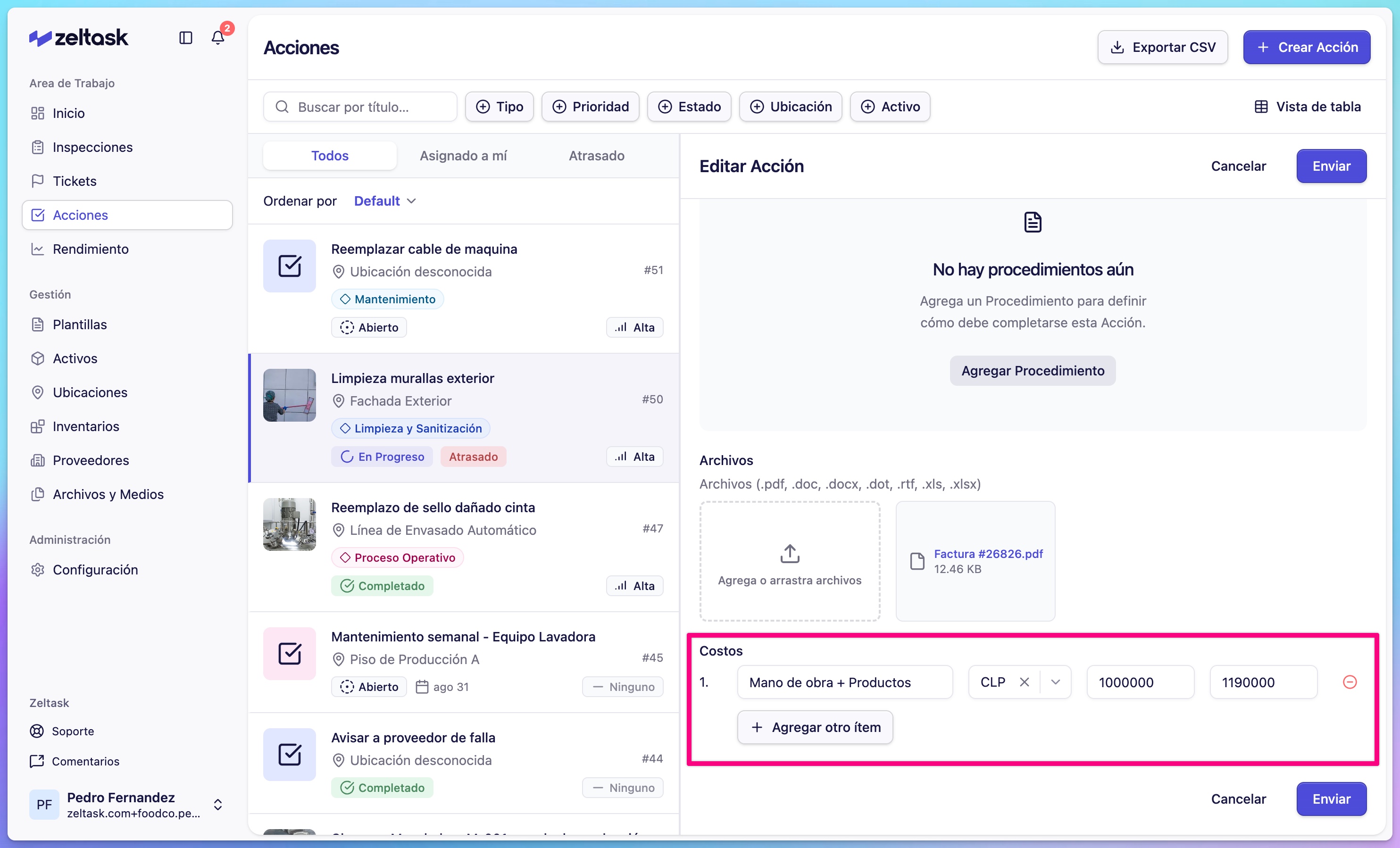
- In the detail view, find the Costs section
Add a Cost
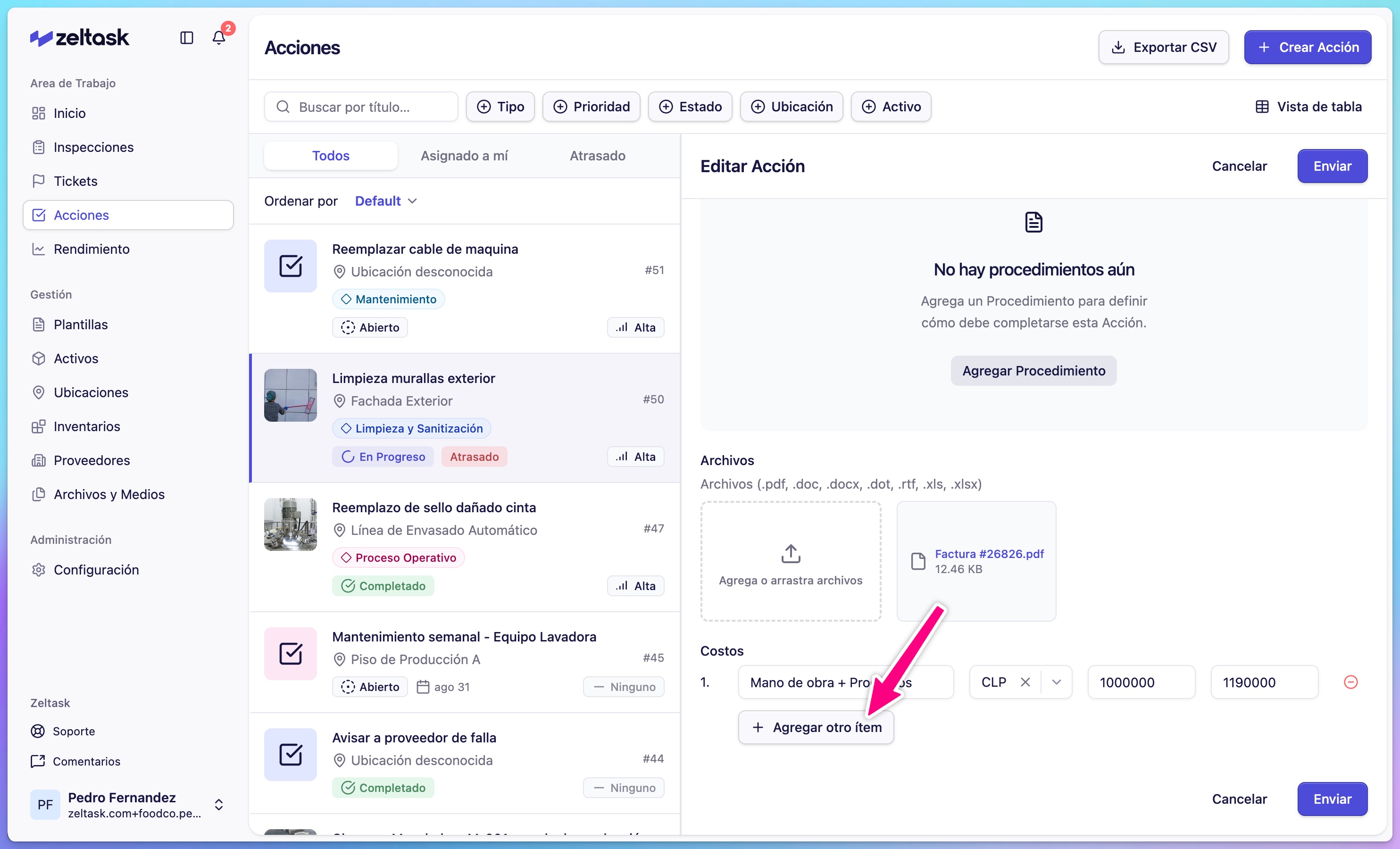
- In the Costs section, click Add Cost
- Complete the fields:
| Field | Description | Example |
|---|---|---|
| Description | What you are recording | "Valve replacement", "External labor", "Absorbent material" |
| Currency | Currency for the amount | USD, EUR, CLP |
| Net Amount | Amount before taxes | 150.00 |
| Tax Amount | Applicable taxes | 28.50 |
- Click Save or Add
Record Labor Hours
To record work hours invested in the action, use the costs section with a descriptive entry:
- In Description, enter "Labor hours" or "Labor"
- In Net Amount, enter the cost of the hours worked
- Complete the currency and taxes as applicable
Add Multiple Costs
You can add as many cost entries as needed. This is useful for:
- Separating parts from labor
- Recording expenses from different vendors
- Detailing individual materials
Tips
- Use clear descriptions to facilitate future reports
- Record costs as soon as they are incurred to avoid losing information
- Include the part name or vendor in the description for better traceability