Edit an Action
After creating an action, you may need to update its details—changing the assignment, adjusting the due date, or adding more information. This guide shows how to edit actions in Zeltask.
Before You Start
- You need appropriate permissions to edit actions
- Some fields may be restricted based on the action's current status
Steps
Step 1: Find the action
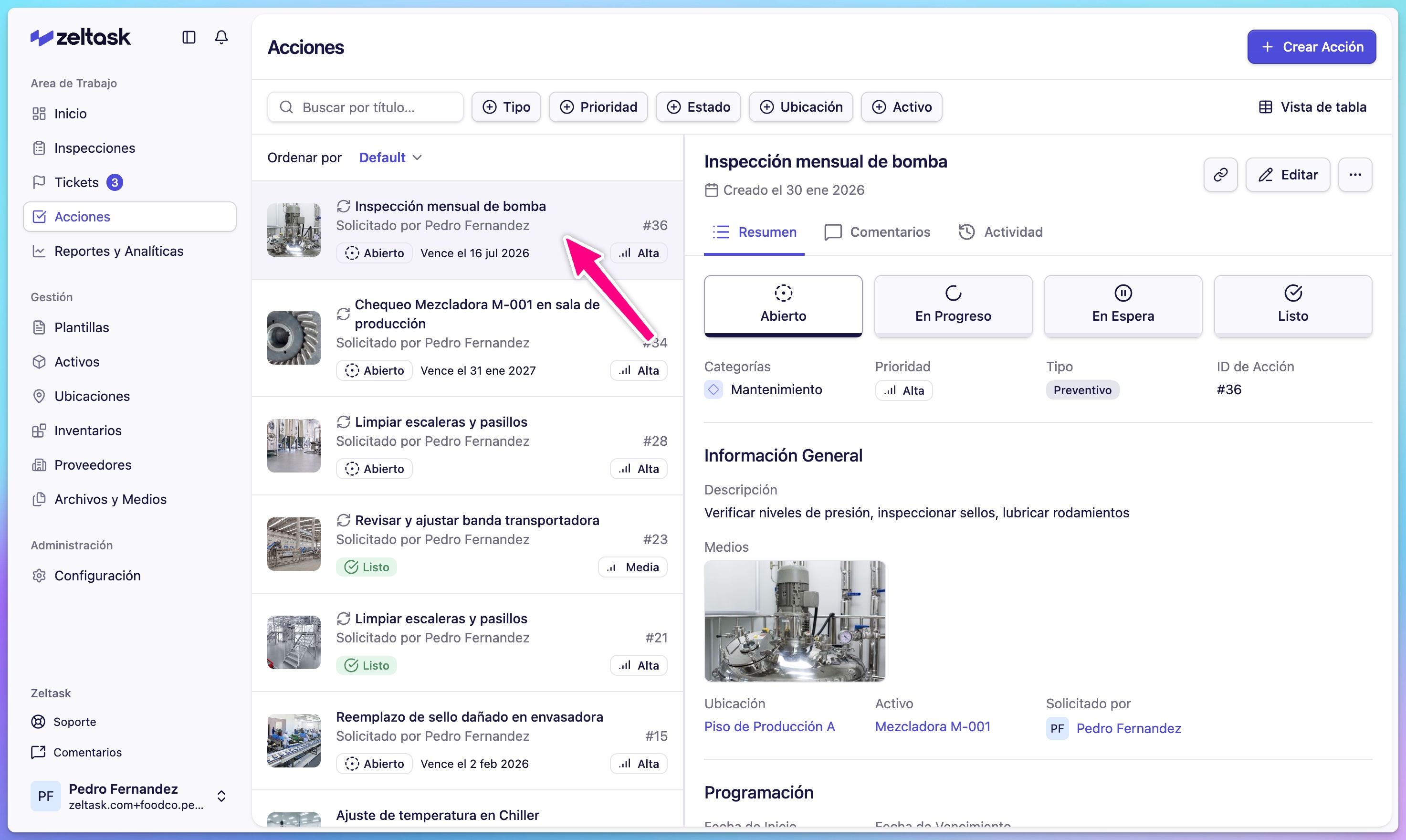
- Click Actions in the left sidebar
- Use search or filters to locate the action you want to edit
- Click on the action card to open its detail view
Step 2: Open edit mode
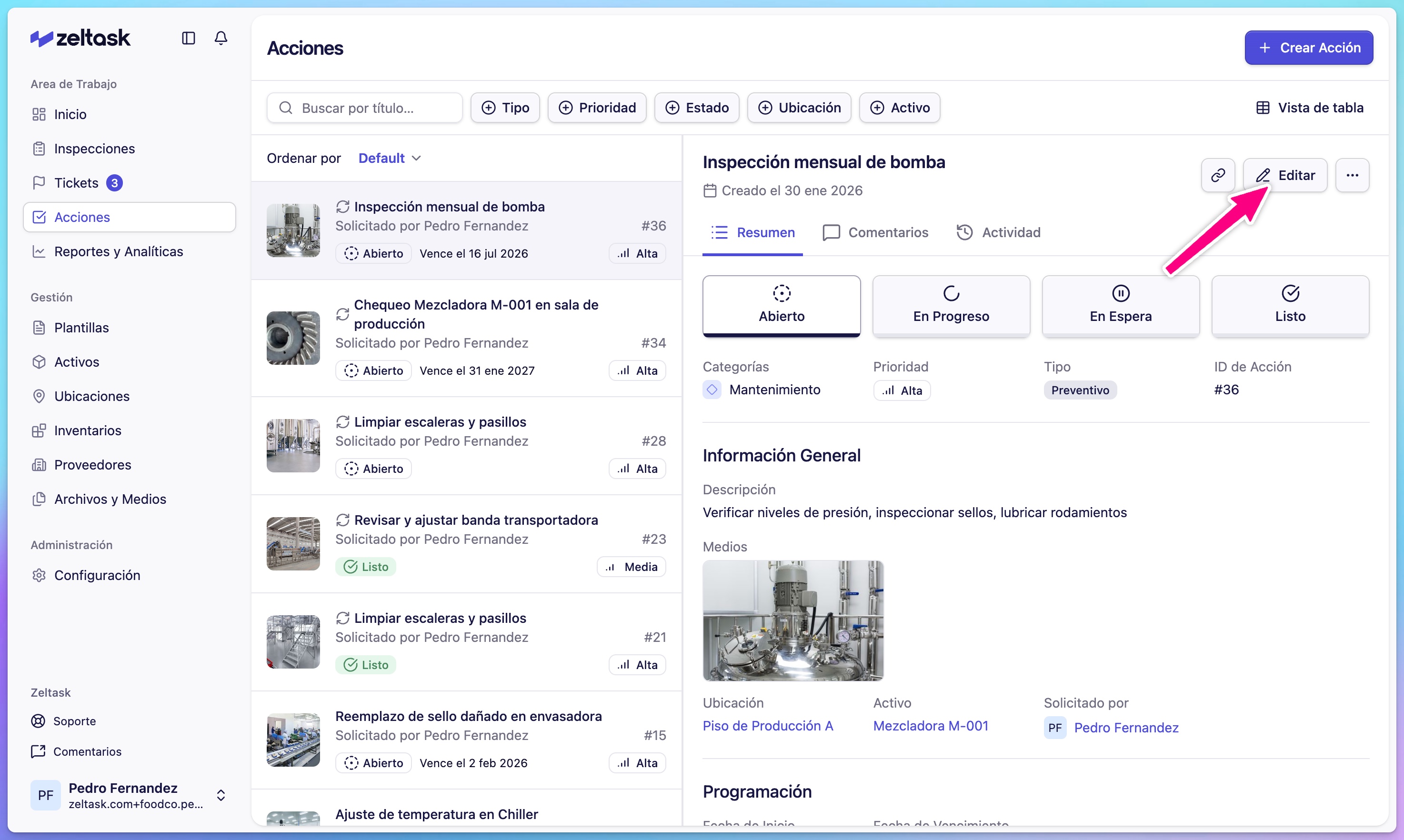
- In the action detail view, click Edit
- The action form opens with current values populated
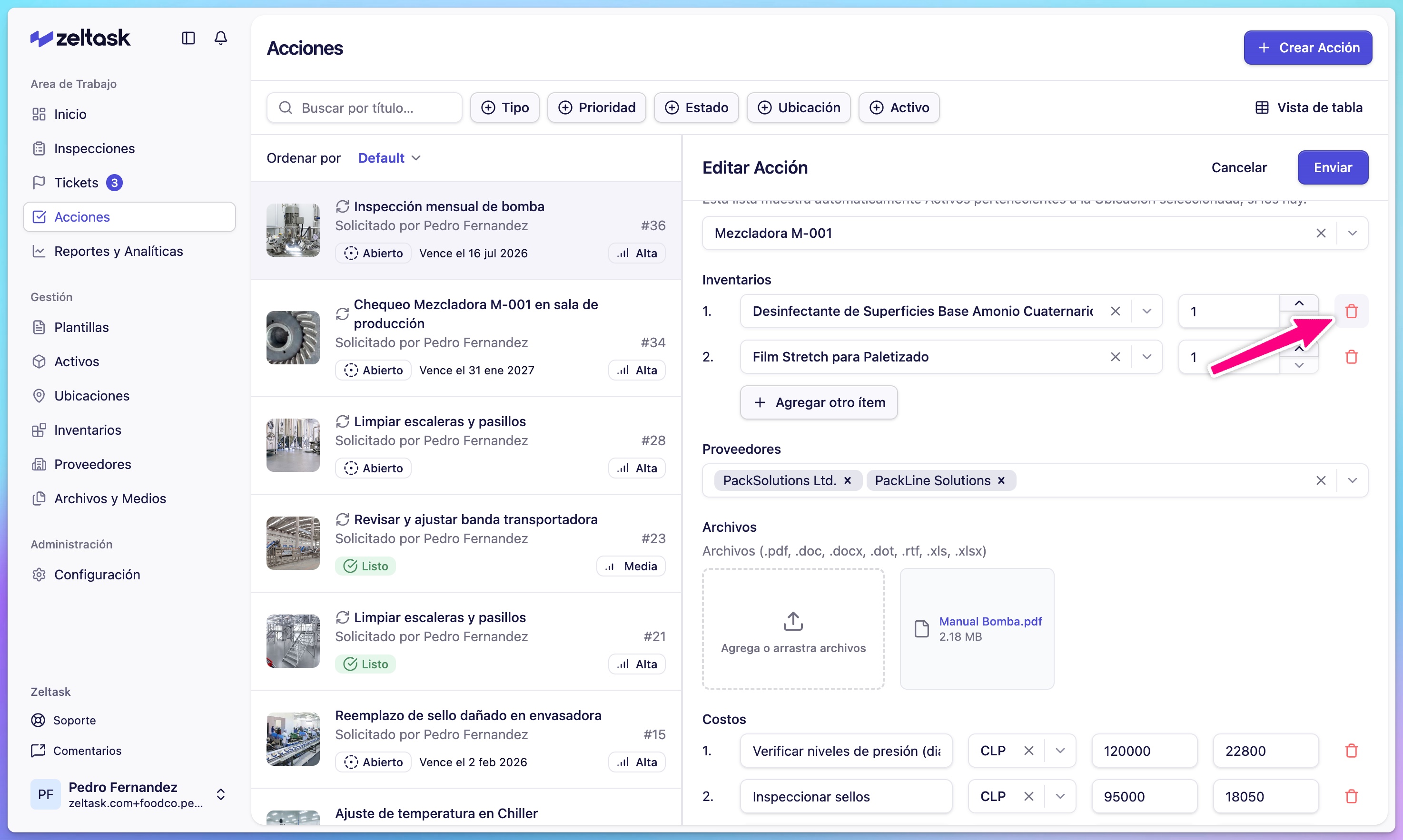
Step 3: Update the fields
Modify any fields that need to change:
- Title or description
- Category or type
- Priority or estimated time
- Dates (start date, due date)
- Assignment (user or team)
- Location or asset
- Inventory, vendor, or attachments
Step 4: Save your changes
- Review the updated information
- Click Submit to save
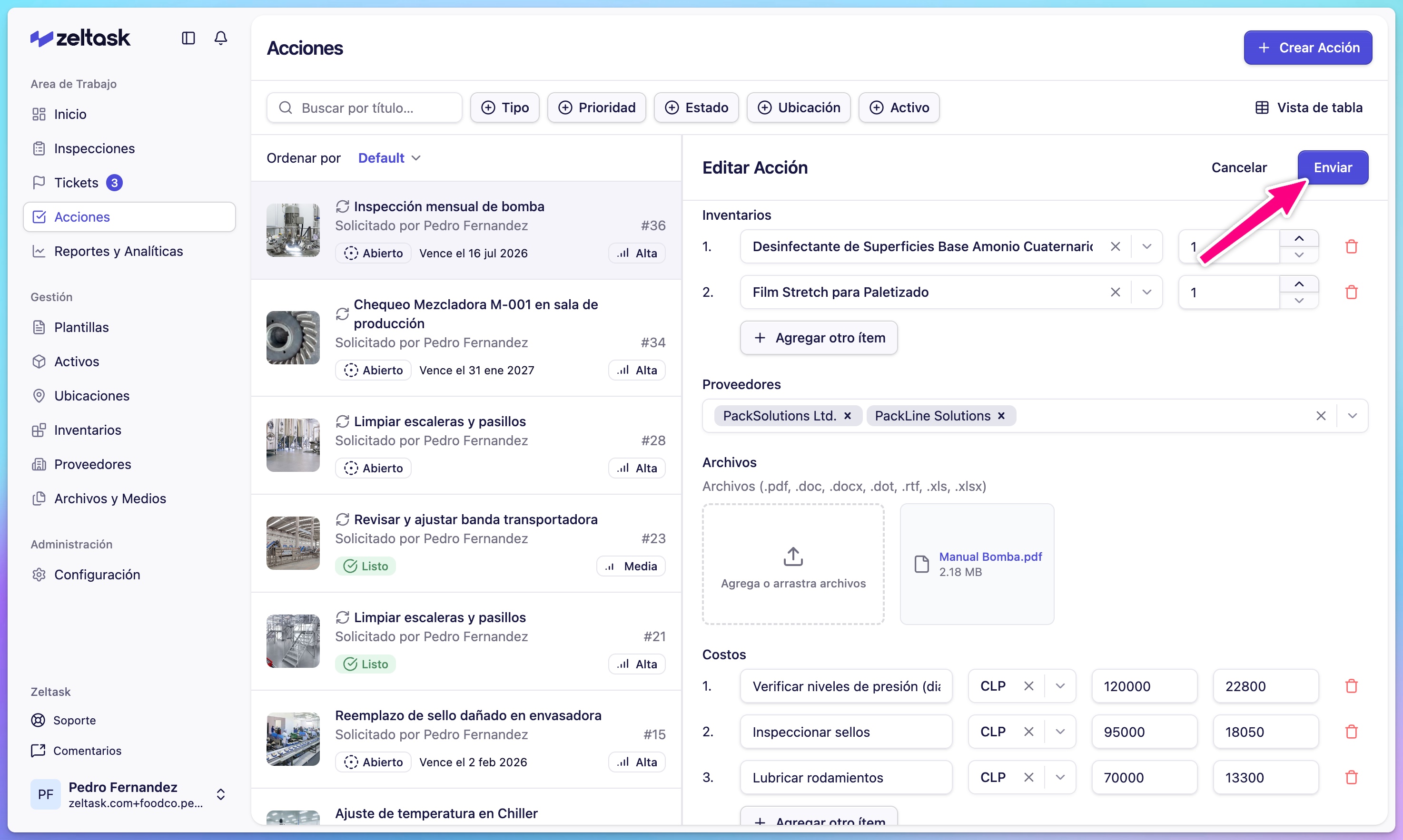
The action is updated and any affected parties are notified of relevant changes.
Common Editing Scenarios
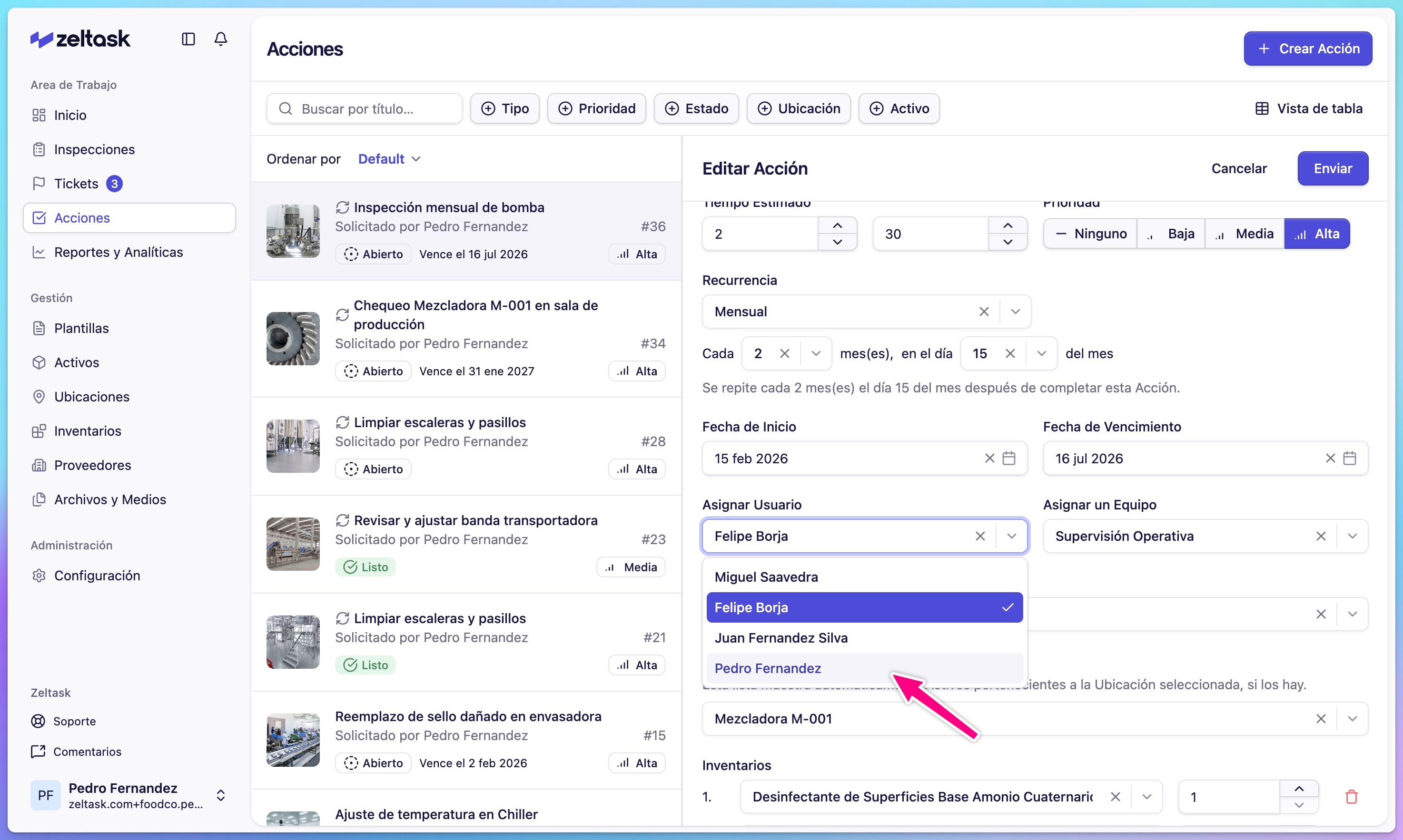
Reassigning an action
If the original assignee is unavailable:
- Open the action for editing
- Clear the current assignment
- Select a new user or team
- Submit the changes
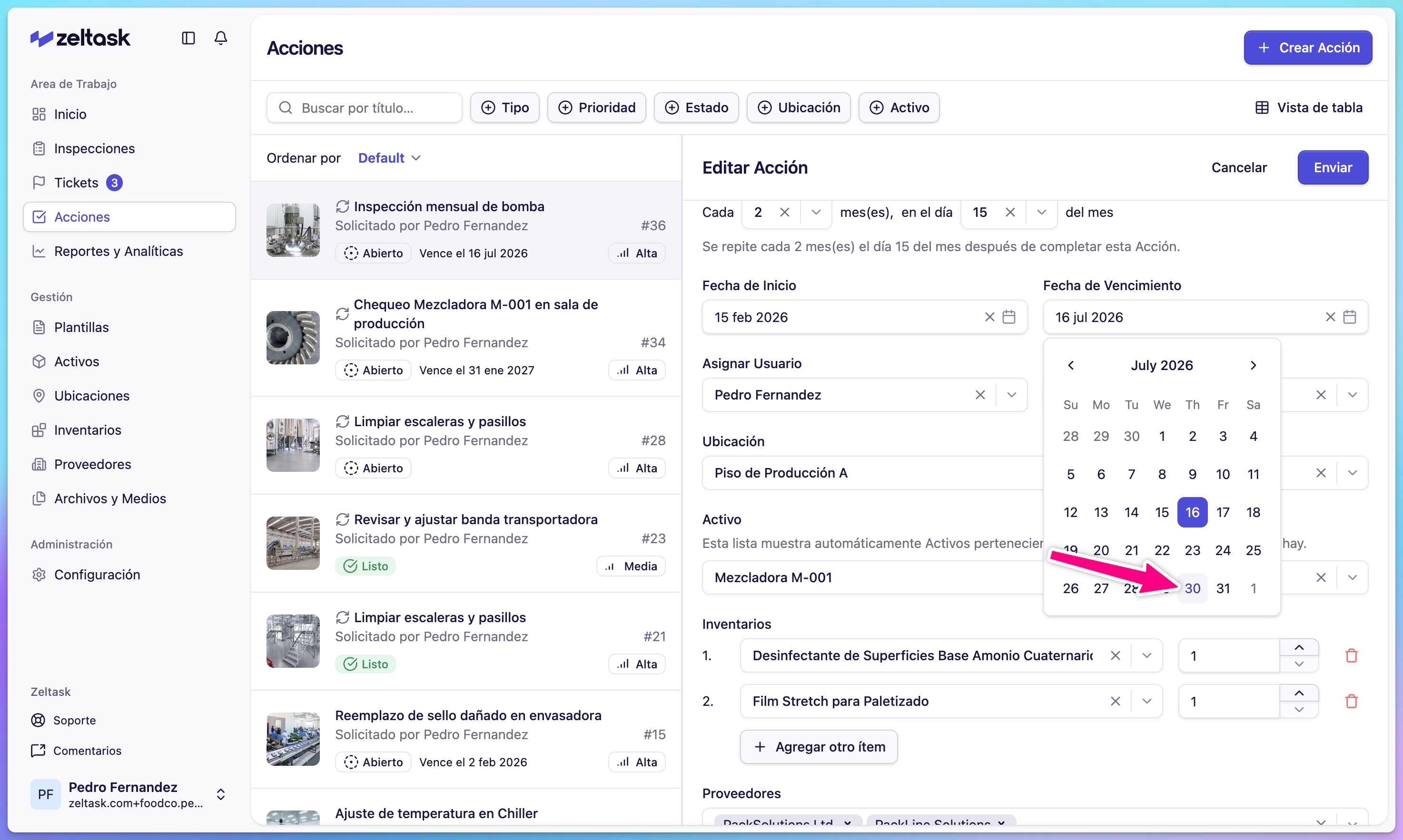
Extending the due date
If more time is needed:
- Open the action for editing
- Click the Due Date field
- Select a new date
- Submit the changes
Adding missing information
If details were incomplete when the action was created:
- Open the action for editing
- Add the missing information (media, description, inventory)
- Submit the changes
Changing priority
If urgency has changed:
- Open the action for editing
- Select a different Priority level
- Submit the changes
What You Cannot Edit
Some aspects of an action may be restricted:
| Restriction | Reason |
|---|---|
| Completed actions | Maintains historical accuracy |
| Certain system fields | Automatically managed by Zeltask |
| Actions you didn't create | Depends on your permission level |
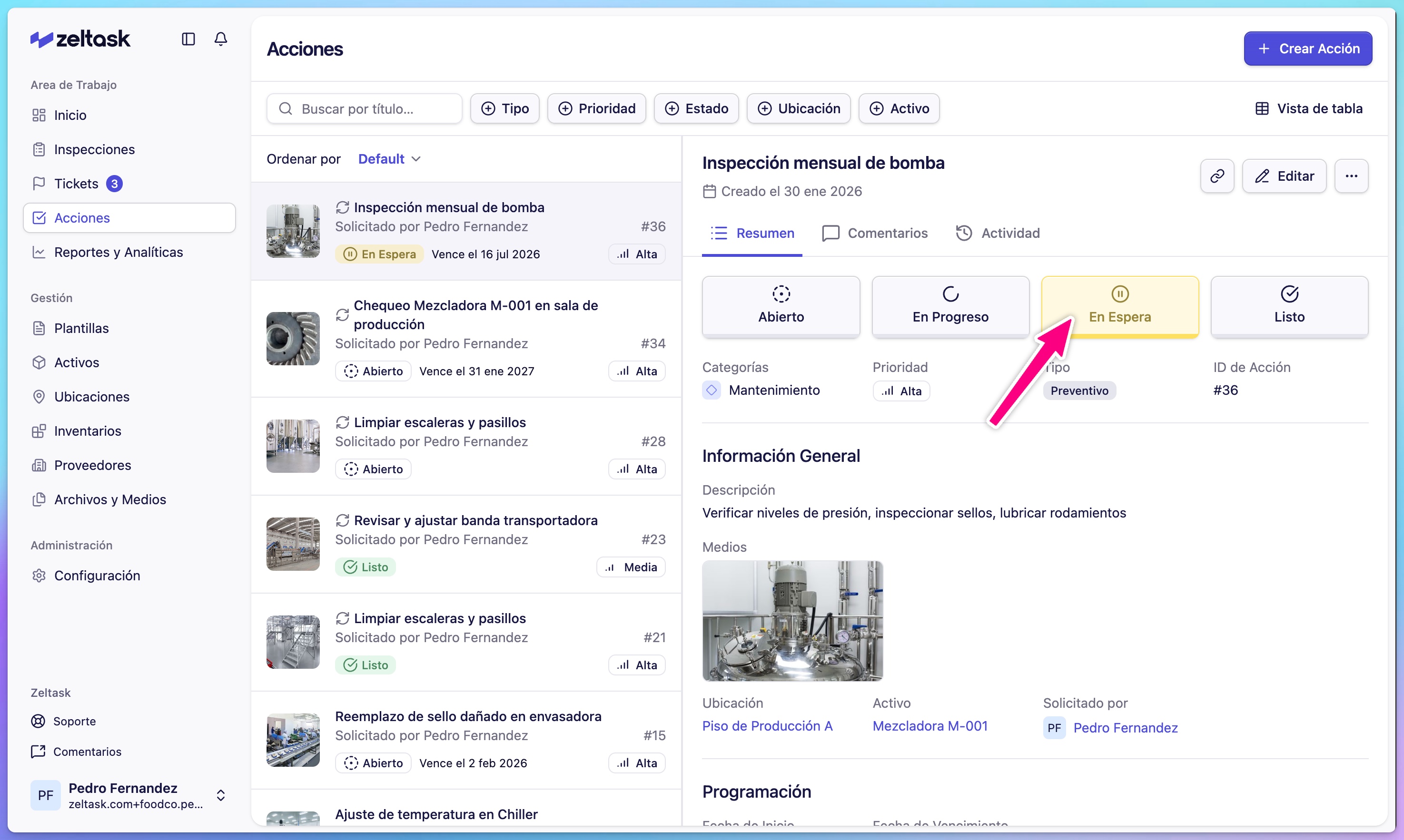
Editing vs. Updating Status
- Editing changes the action's details (title, description, assignment, etc.)
- Updating status changes where the action is in its lifecycle (Open → In Progress → Done)
To update status, use the status controls in the action detail view rather than the edit form.
Tips
- Add comments when editing to explain why changes were made
- If an action needs significant changes, consider whether a new action would be clearer
- Review the activity history to understand previous changes before editing