Zeltask Platform Overview
This guide walks you through the main areas of Zeltask so you can navigate confidently—whether you're at a desk or on the plant floor.
Built for Plant Floor Reality
Zeltask is designed for frontline execution. The platform works on mobile devices, supports real plant conditions, and lets teams complete inspections, log maintenance, and report issues where the work happens. Data is captured at the moment of execution and synchronized when connectivity is available.
The Main Navigation
When you log into Zeltask, you see a sidebar with access to all modules:
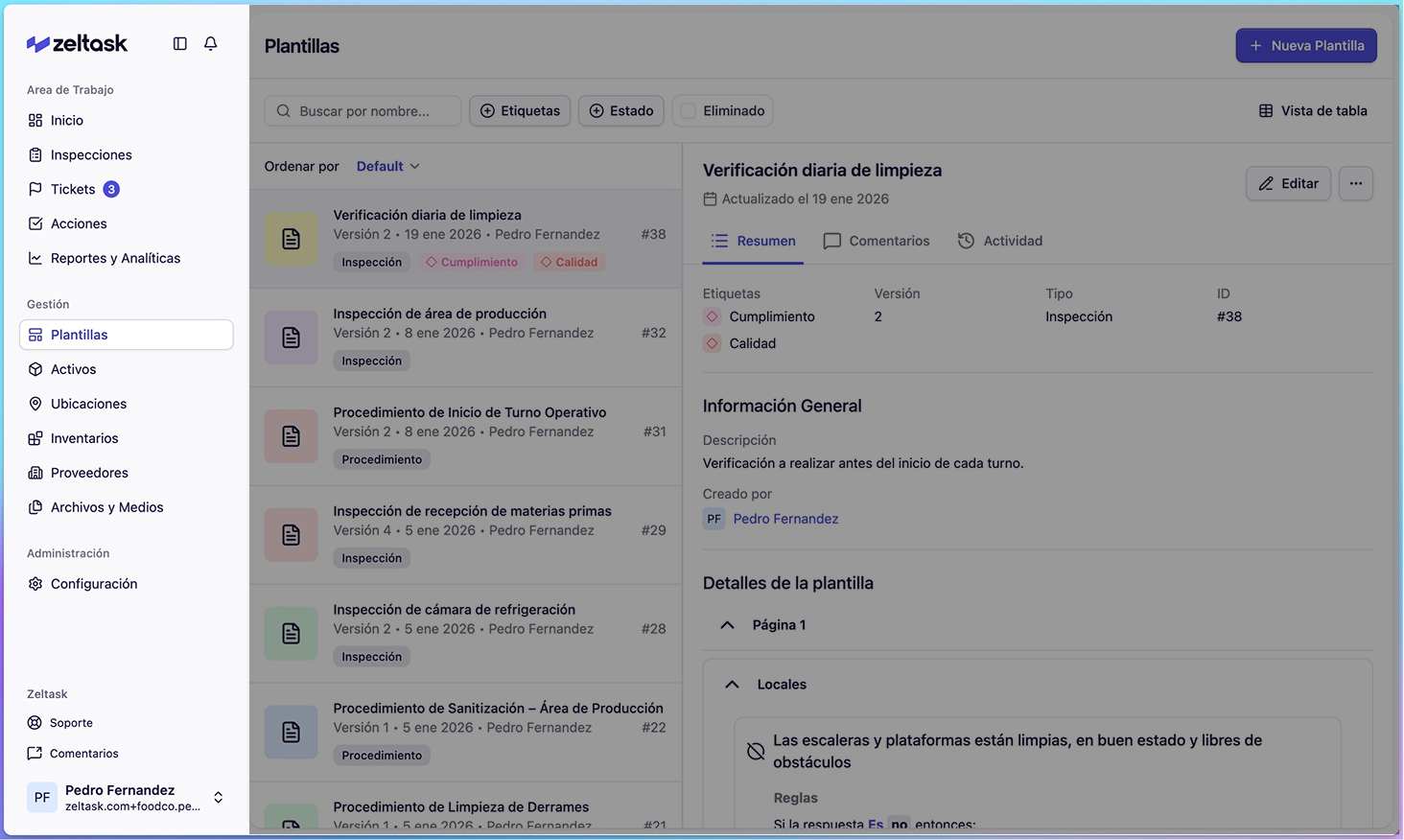
| Module | Purpose |
|---|---|
| Actions | View and manage work orders (preventive and reactive) |
| Inspections | Execute and track inspection checklists |
| Assets | Browse and manage equipment with full history |
| Locations | View facility areas, zones, and sites |
| Inventory | Track spare parts and materials |
| Users & Teams | Manage people and groups |
| Templates | Create inspection and procedure templates |
| Settings | Configure platform preferences |
Views and Layouts
Most modules offer two view options:
- Card View — Shows items as individual cards with key information visible
- Split View / Table View — Displays items in a compact table format
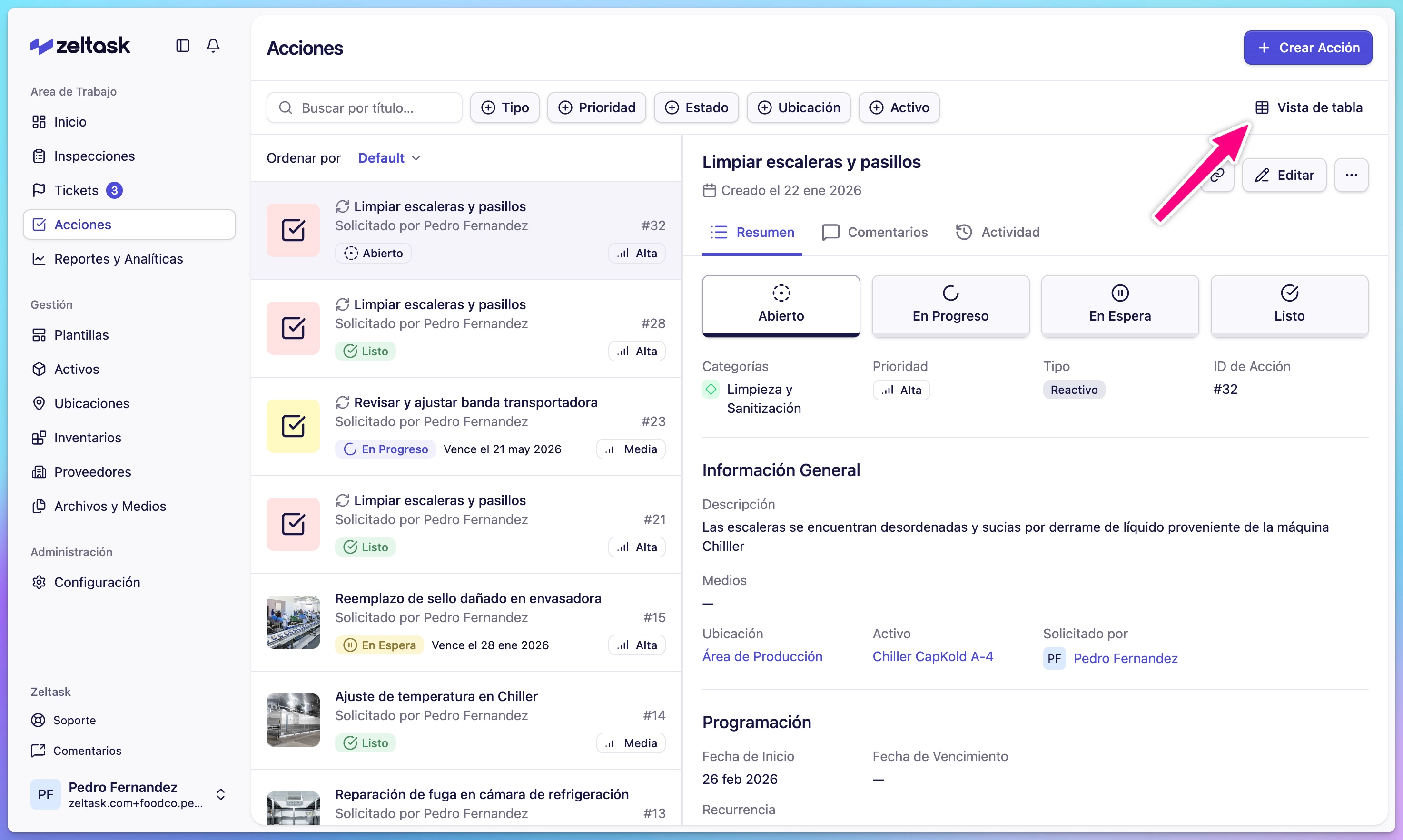
Click the view toggle in the top-right area of any module to switch layouts.
The Detail View
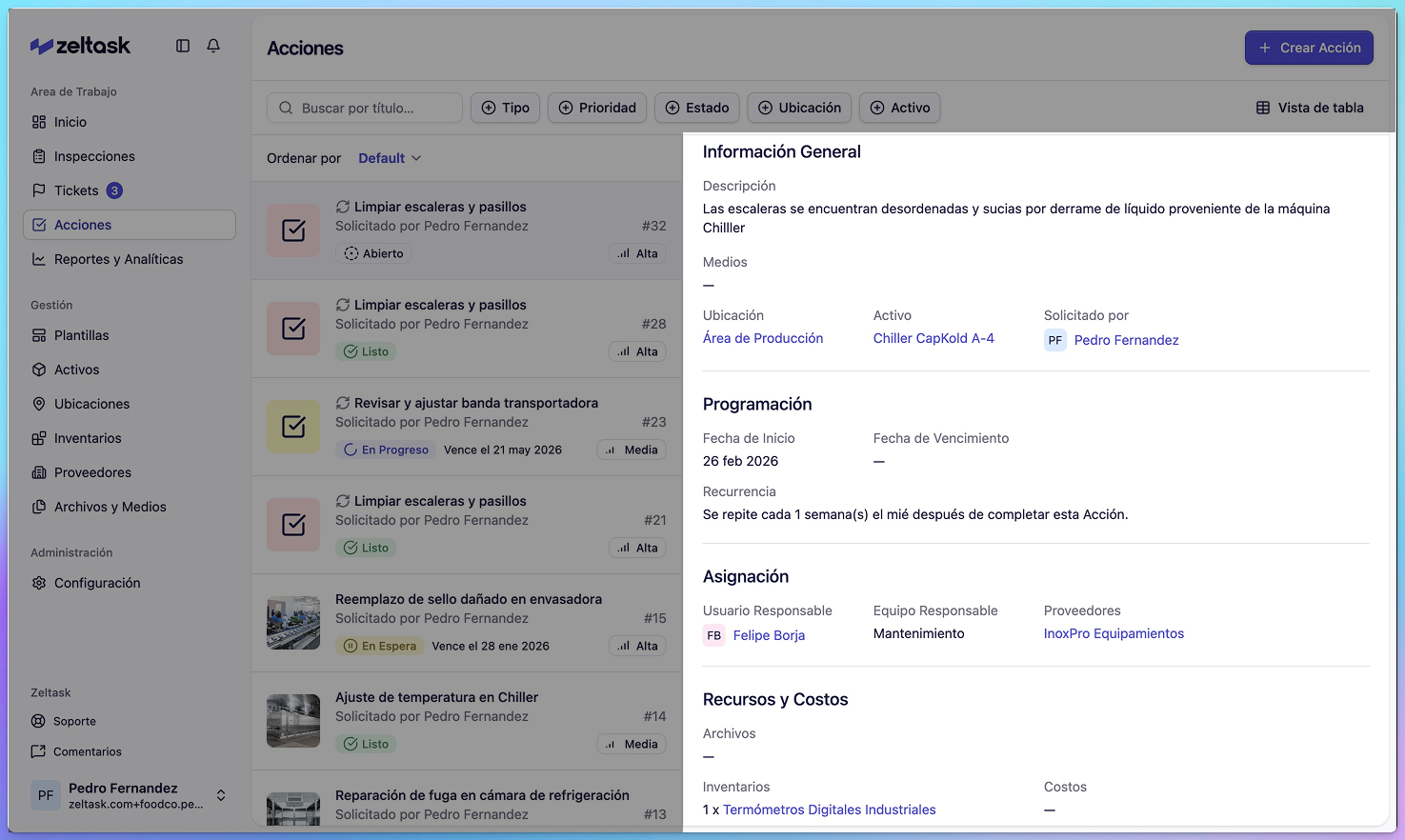
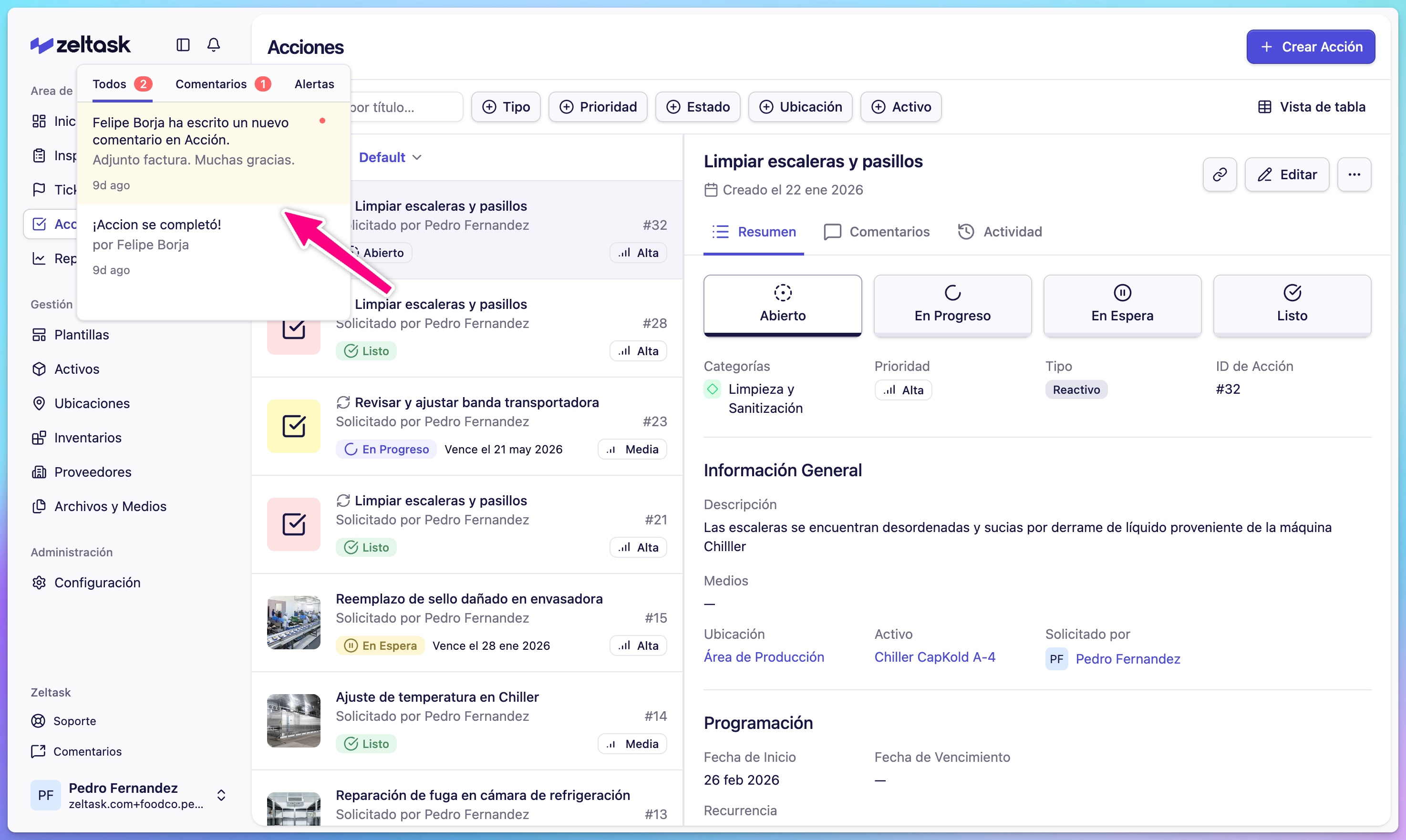
Selecting any item (action, asset, inspection, location) opens its Detail View:
- Overview — All information about the item
- Comments — Notes and communication from your team
- Activity — History of changes and updates
Search and Filters
Every module includes search and filter options:
- Use the search bar to find items by name, ID, or other text fields
- Use filter chips to narrow results by status, priority, location, or other attributes
Creating New Items
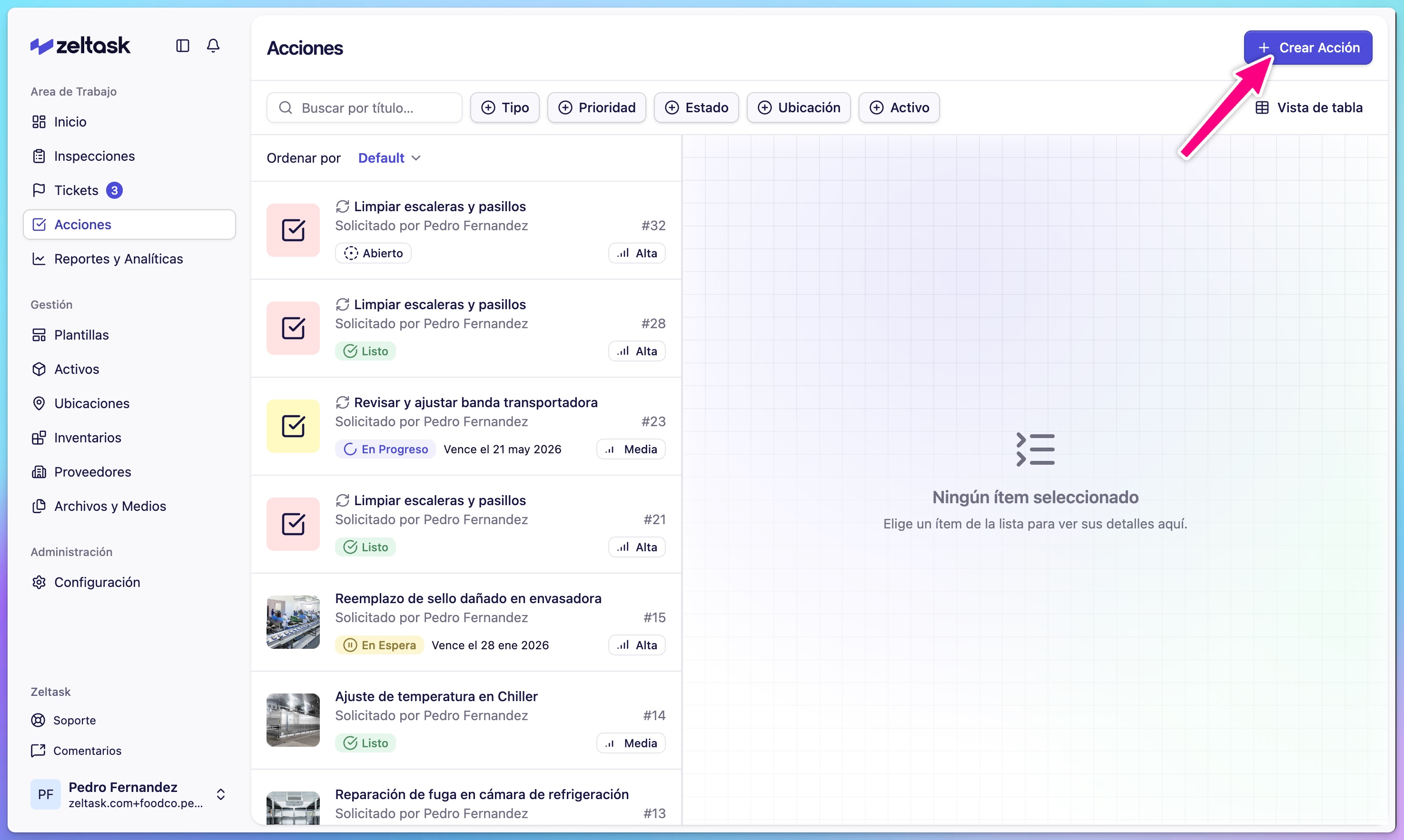
To create a new item in any module:
- Open the module from the sidebar
- Click the + Create button (labeled Create Action, Create Asset, etc.)
- Fill in the required fields
- Click Submit or Save
QR Codes for Field Access
Assets and Locations have QR codes that can be printed and attached to physical equipment or posted in areas. When scanned, the QR code opens a quick-action menu:
- View item details and history
- Create an action linked to that asset or location
- Report a ticket
- See related assets (for locations)
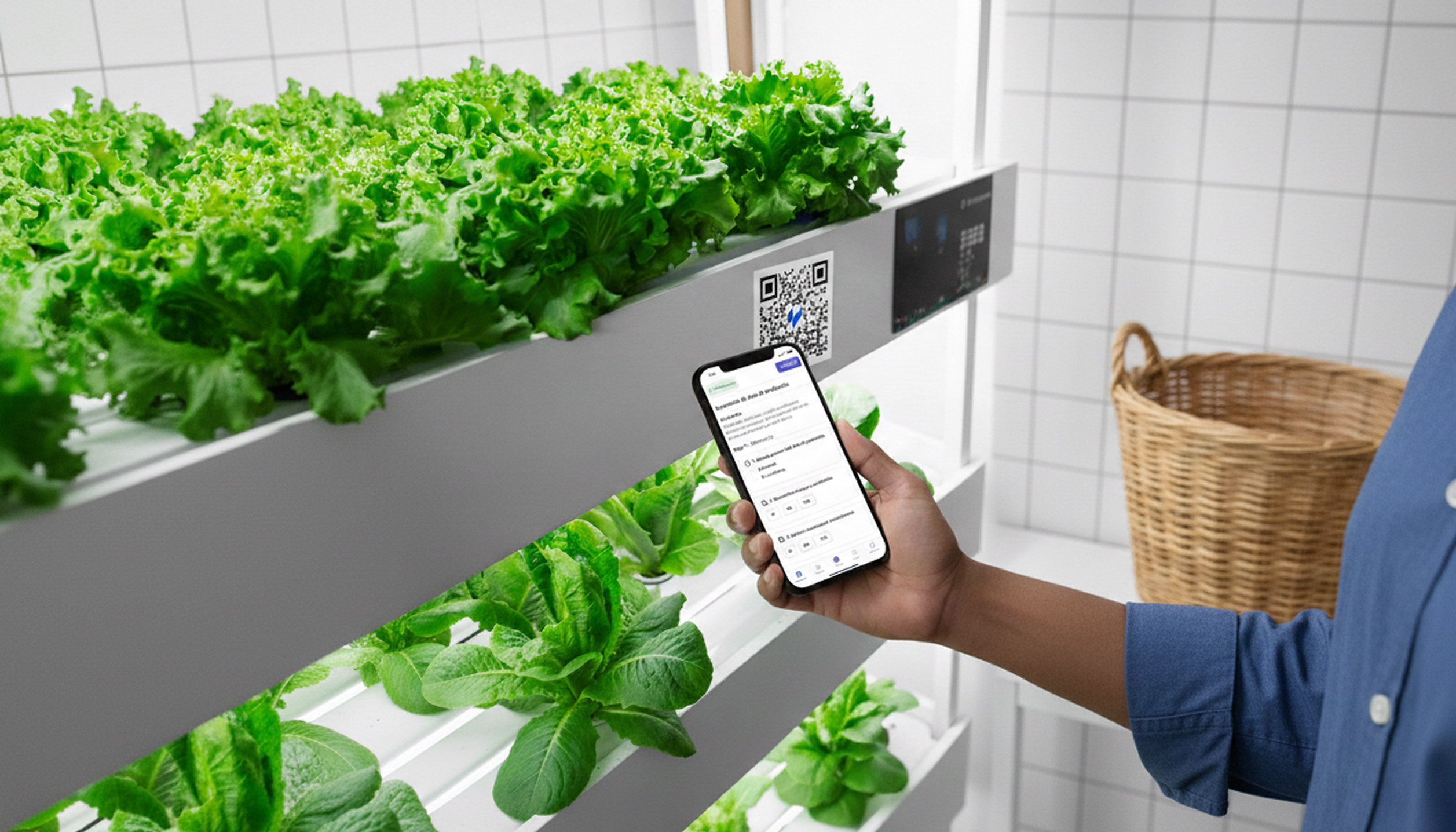
This enables quick access from the field without navigating through menus.
Notifications
Zeltask sends notifications when:
- You are assigned a new action or inspection
- An item you follow has updates
- A deadline is approaching
- An inspection triggers an alert based on conditions
Access notifications from the bell icon in the top navigation bar.
Mobile Access
Zeltask is mobile-first and works on any device through your web browser. Frontline teams can:
- Execute inspections on tablets or phones
- Complete work orders in the field
- Capture photos and evidence
- Scan QR codes for quick access
- Work in areas with limited connectivity
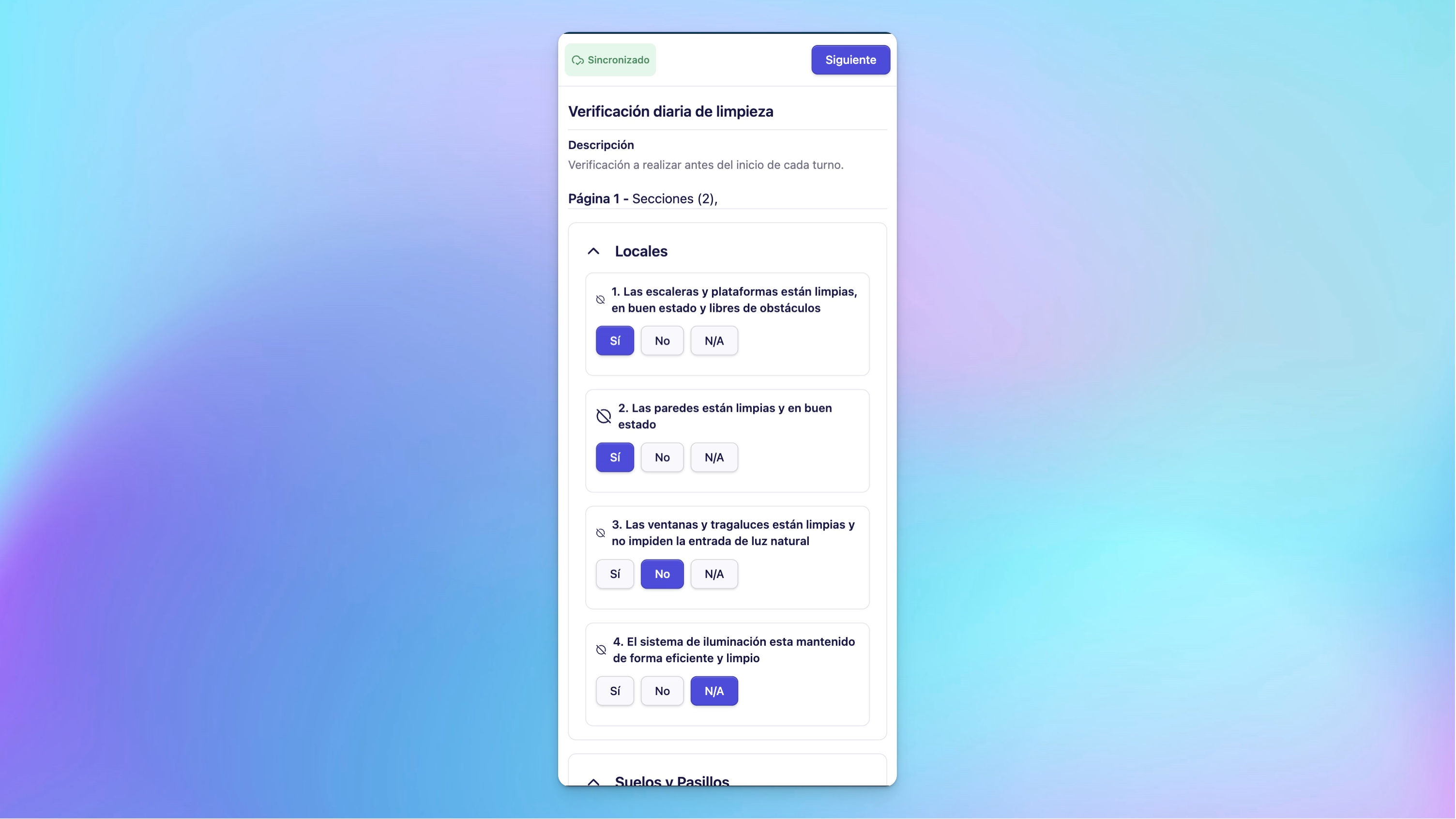
The system adapts to operations—teams don't need to adapt to the tool.
Connected Workflow Example
Here's how a typical workflow flows through Zeltask—notice how each step connects to the next:
- Schedule an Inspection — A manager schedules a daily equipment check
- Operator Executes — The assigned operator completes the inspection on their device
- Deviation Found — A question triggers an alert based on the answer
- Ticket Created — The inspection creates a ticket linked to the asset
- Action Generated — A corrective action is assigned to maintenance
- Work Completed — The technician completes the repair and logs parts used
- History Recorded — The asset now has a complete, traceable record
Nothing is lost between detection and resolution. Context flows through the entire chain.