Invite Your Team
Add team members to Zeltask so they can execute inspections, complete work orders, and collaborate on operational tasks. Users receive an email invitation to join your organization.
Before You Start
- You need Admin permissions to invite users
- Have email addresses ready for the people you want to invite
Steps
Step 1: Open User Management
- Click Settings in the left sidebar
- Under Configuration, click People
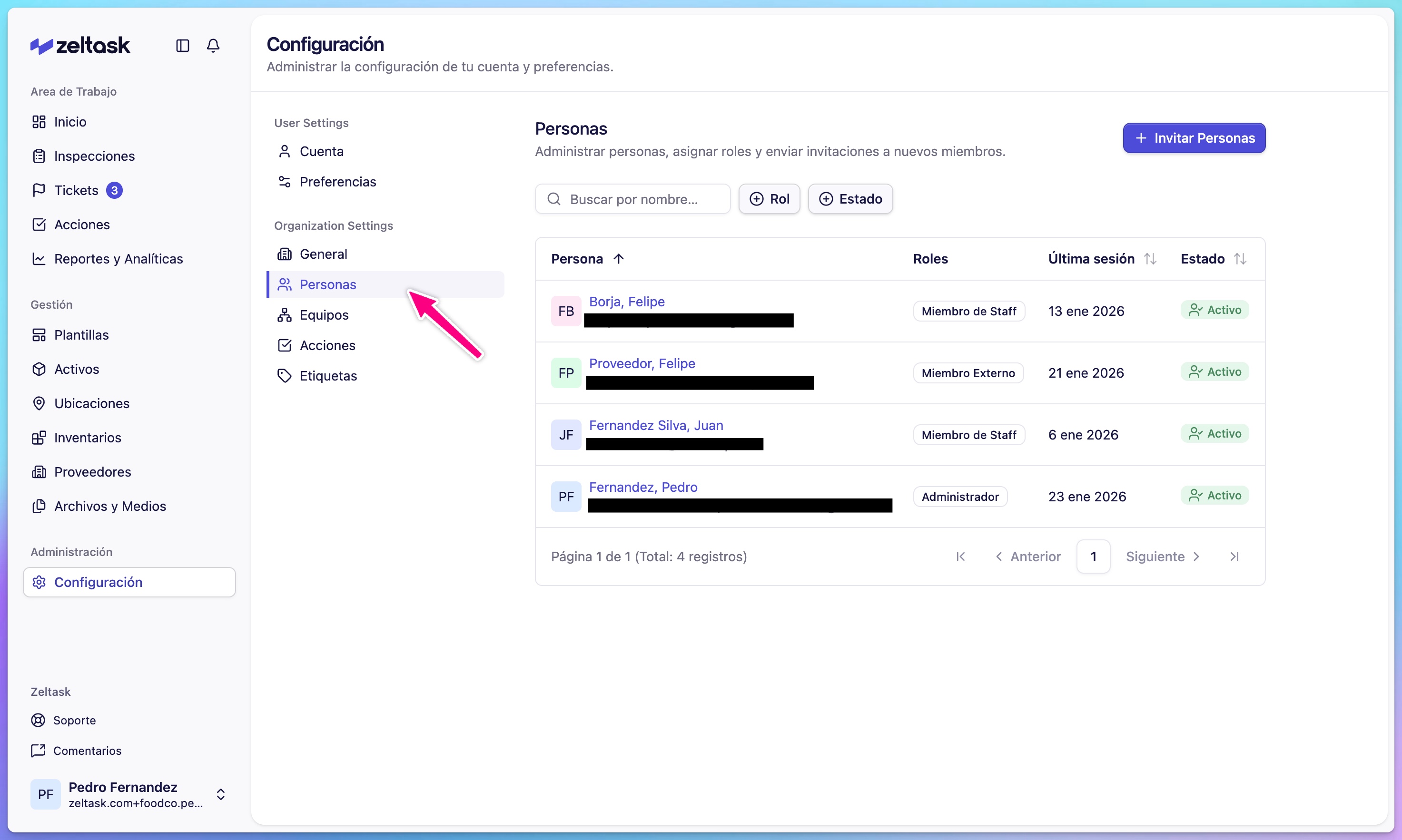
Step 2: Start a new invitation
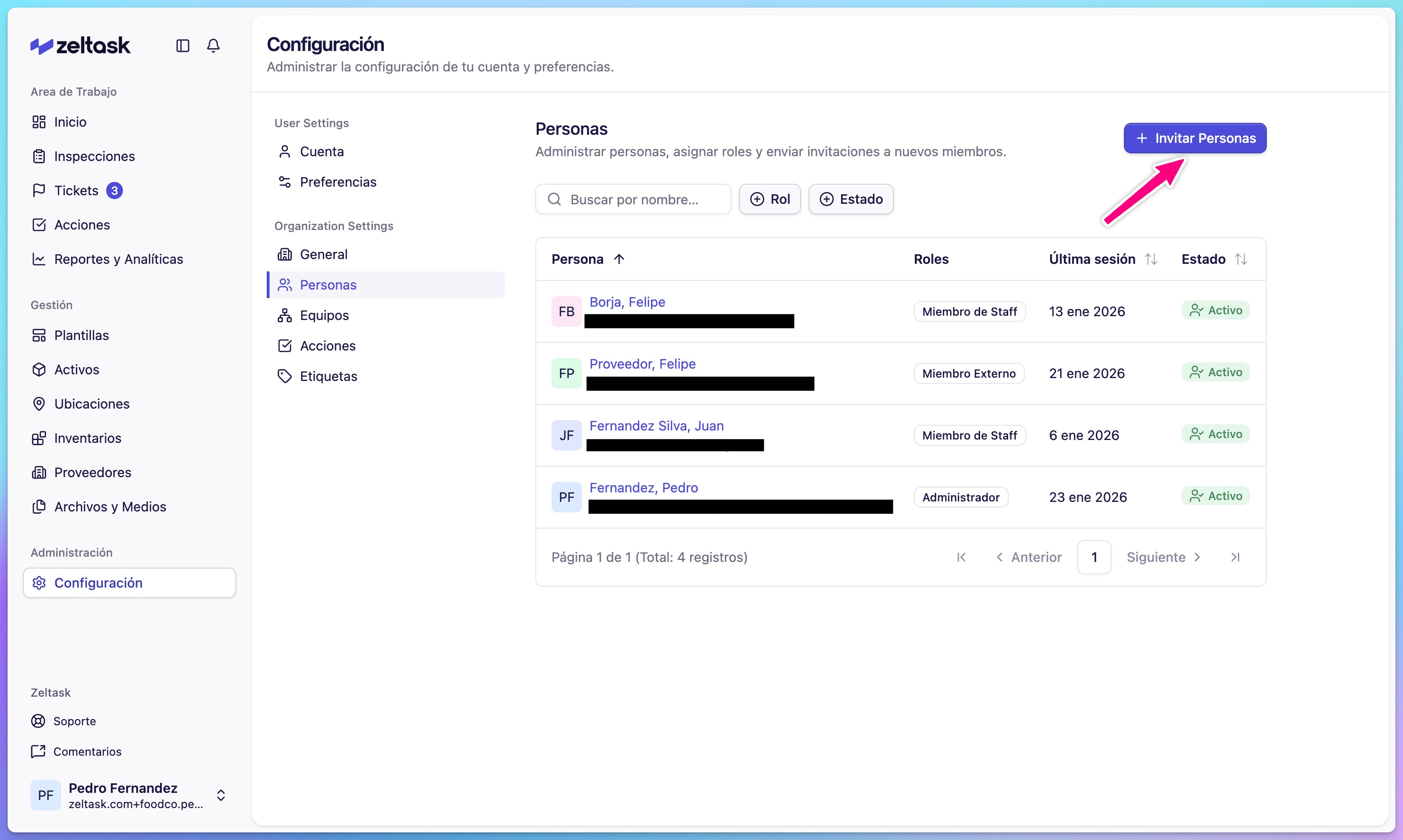
- Click Invite User or + in the top-right corner
- The invitation form opens
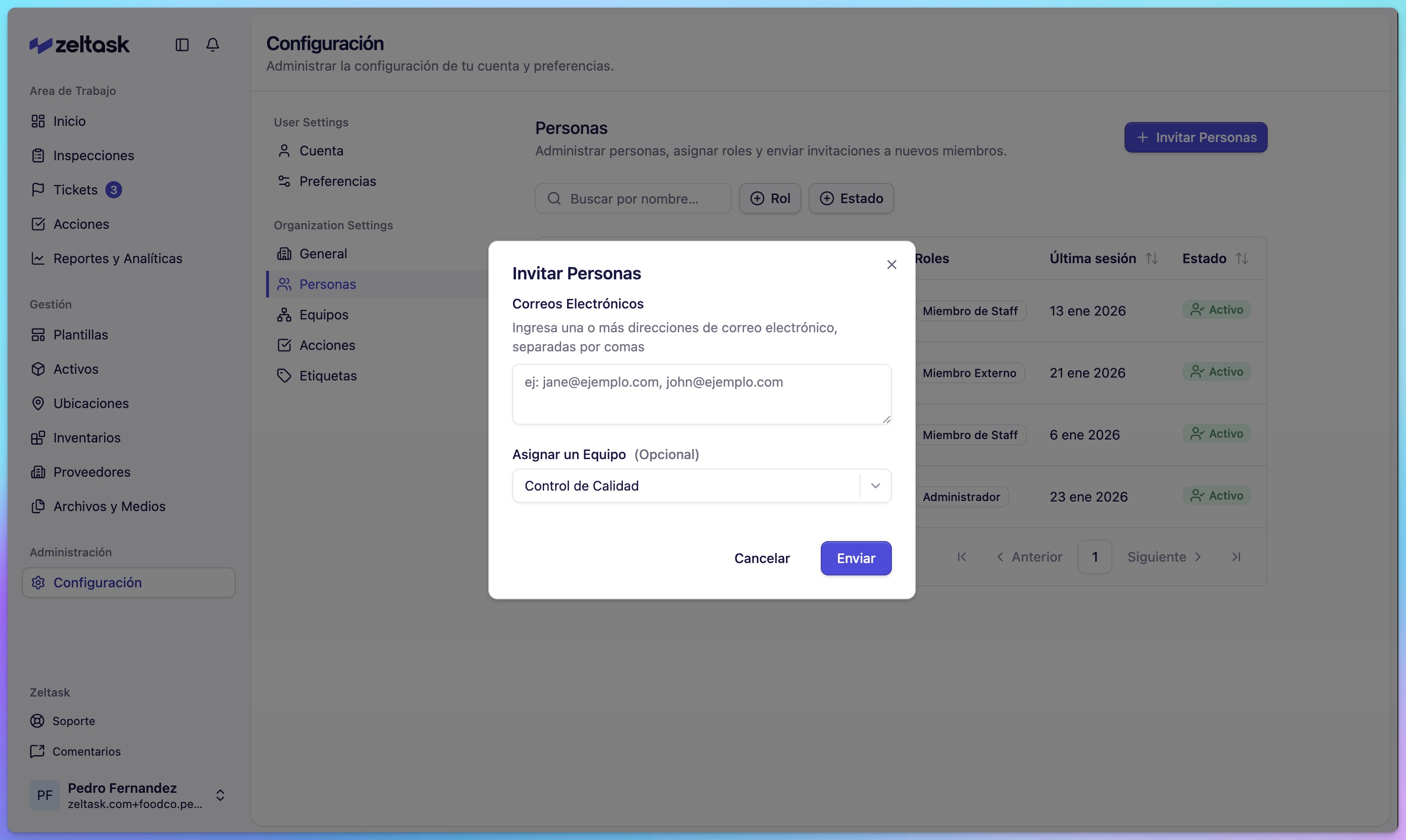
Step 3: Enter the user's email
Enter the email address of the person you want to invite:
| Field | Description |
|---|---|
| Email address where the invitation will be sent |
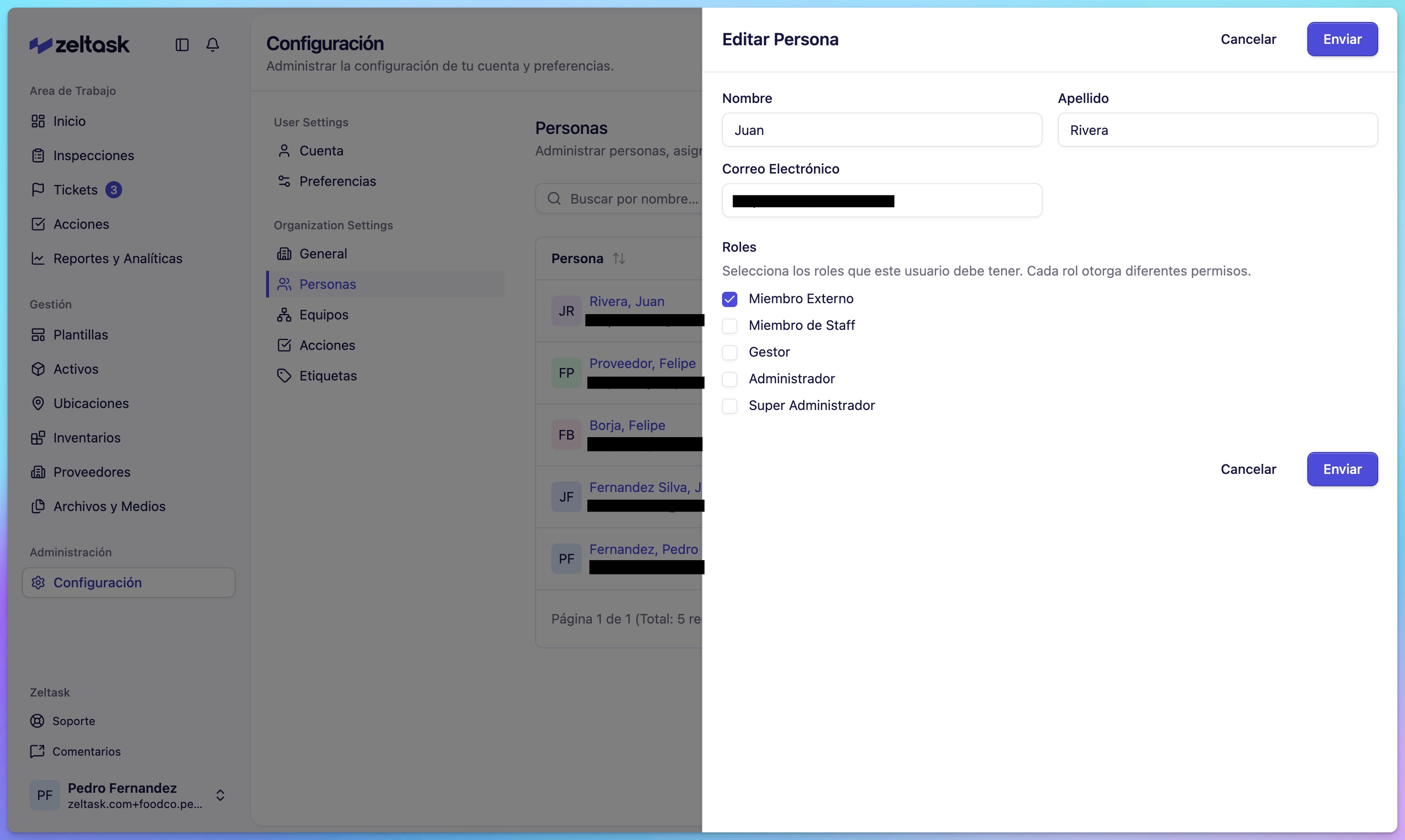
Step 4: Select the permission level
Choose the appropriate access level for this user:
| Permission | Description |
|---|---|
| External Member | Limited access, typically for contractors or guests |
| Staff Member | Can execute inspections and work orders assigned to them |
| Manager | Can create, assign, and supervise tasks for their team |
| Administrator | Full access to all platform settings and configurations |
Step 5: Send the invitation
- Review the information
- Click Send Invitation
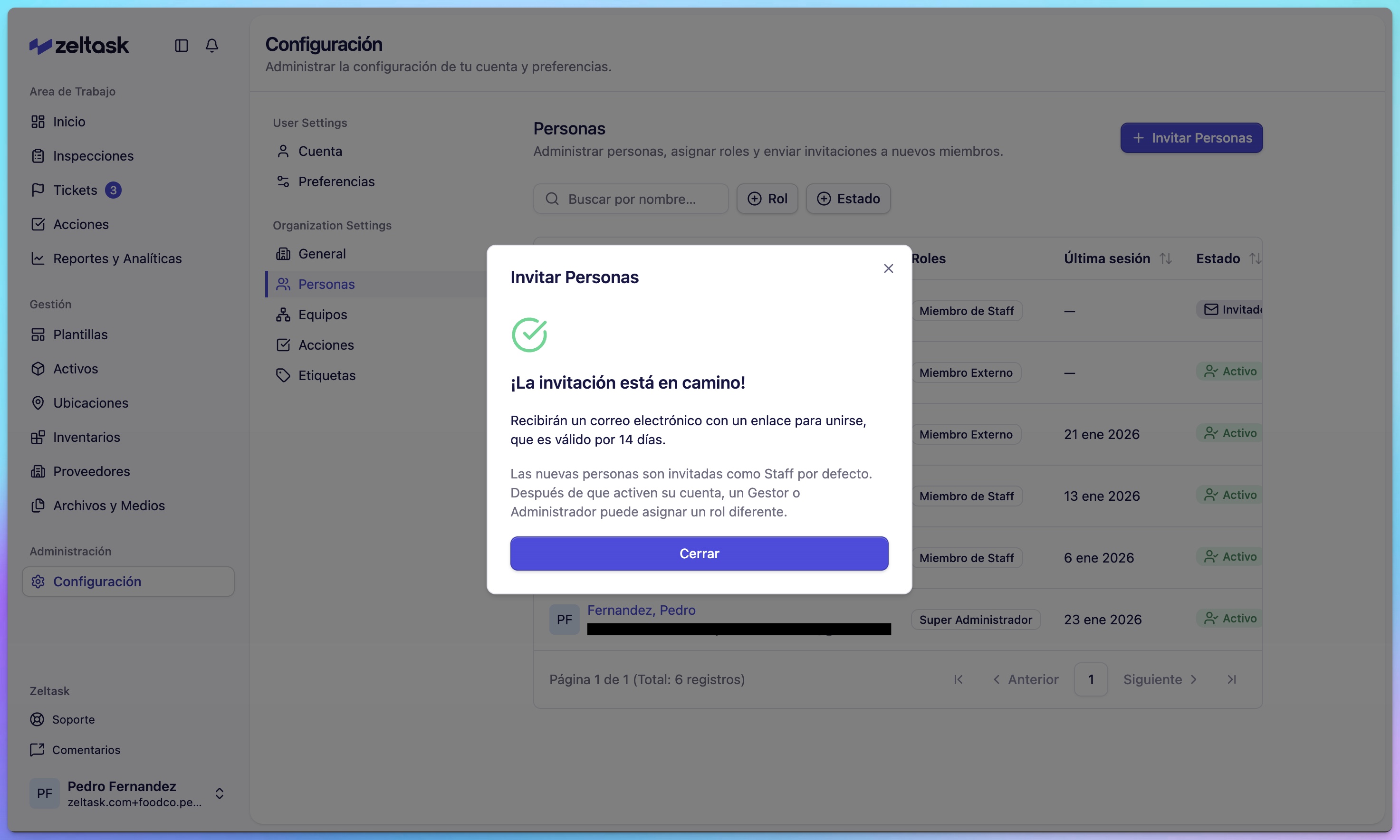
The user will receive an email with instructions to join your organization and create their password.
User Status
After sending invitations, users appear in the list with one of these statuses:
| Status | Meaning |
|---|---|
| Invited | Invitation sent but not yet accepted |
| Active | User accepted the invitation and can access the platform |
Adding Users to Teams
After users accept their invitations, you can organize them into teams:
Step 1: Open Team Management
- Click Settings in the sidebar
- Under Configuration, click Teams
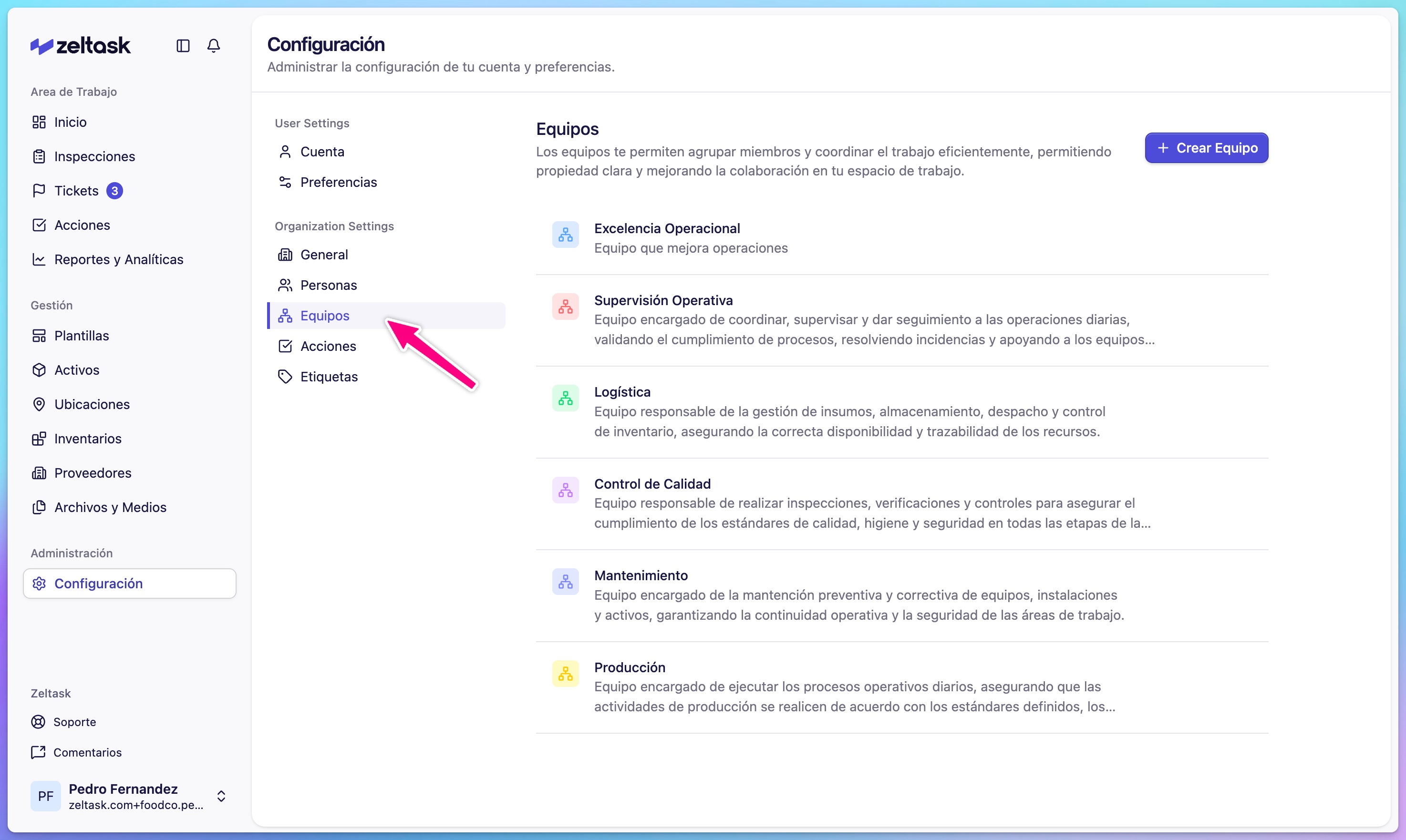
Step 2: Create a new team
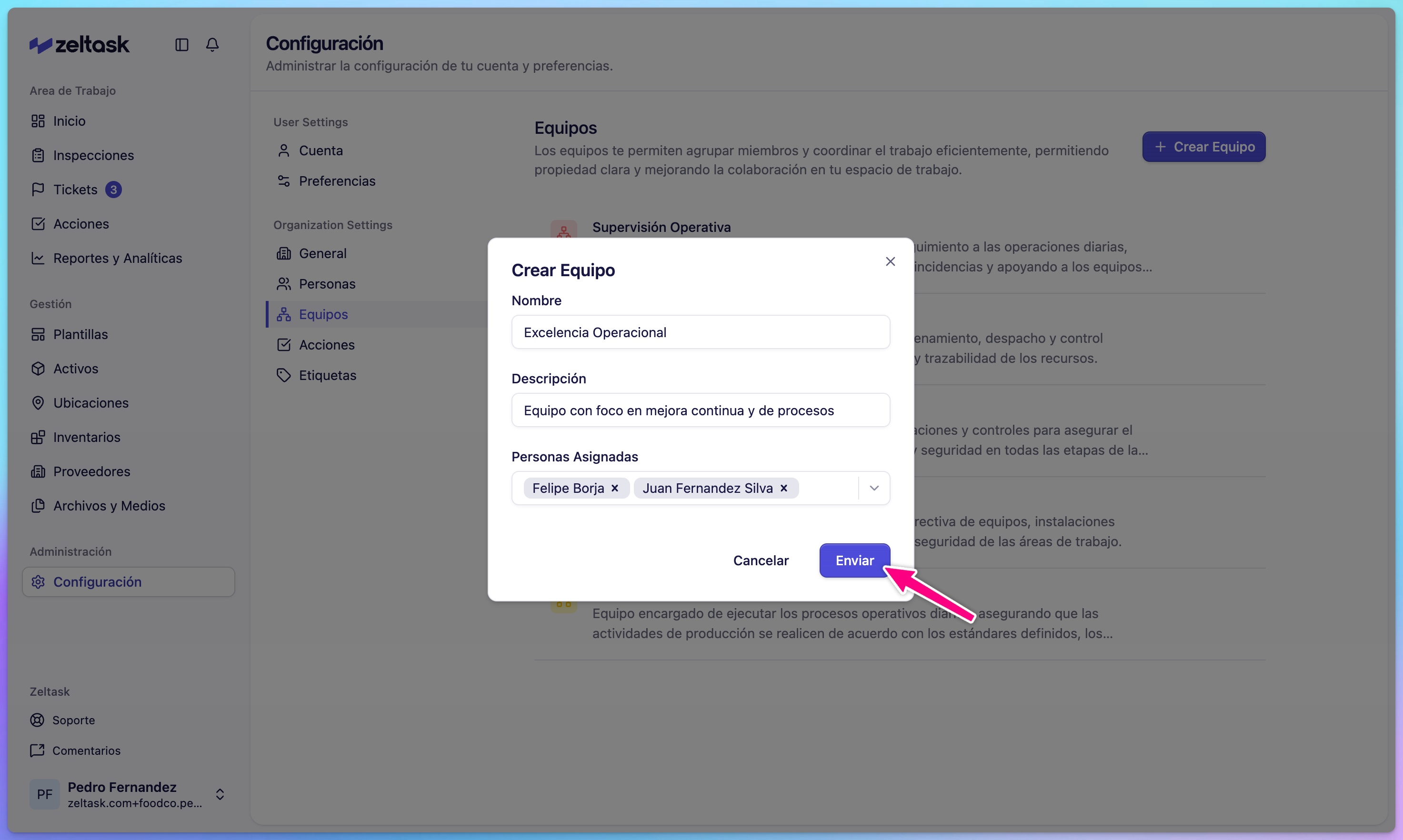
- Click Create Team or +
- Enter a Name for the team (e.g., "Maintenance Crew", "Quality Inspectors")
- Add a Description (optional)
- Select the Users who should be part of this team
Step 3: Save the team
- Click Save
- The team is now available for assignments
Tips
- Assign actions and inspections to teams when any available member can complete the task
- Assign to individual users when a specific person must be responsible
- Use descriptive team names that reflect the team's function (e.g., "Night Shift Maintenance")
- Start with fewer permission levels and increase access as needed
- Follow up with users who haven't accepted their invitations